Viewing utilization metrics for a virtual machine
Use the Dedicated Cloud Compute portal to view utilization metrics for your virtual machine for Lumen® Dedicated Cloud Compute. You can view the status of the virtual machine, the vCPU and vRAM shown in circular and line graph form, server information such as the name, operating system, IP address, and storage for the virtual machine.
You can use the details page to perform actions on your virtual machine such as stopping, cloning, or restarting. The details page gives you the option to modify the name of the virtual machine, as well as adding or changing storage options. Changing the Hot Add status gives you the option to change or add resources to a running virtual machine.
Note: To access the Dedicated Cloud Compute portal, you must have a username and password for Managed Services portal.
To view utilization metrics for a virtual machine:
- Sign in to the Managed Services portal.
- Using the left navigation, click Infrastructure, then click Overview.
The Dedicated Cloud Compute portal shows the clusters for each data center in your organization.
- Select a virtual machine from the expanded menu to view details for that virtual machine. (The expanded menu can collapse to show only the data centers or expand to show clusters and virtual machines.)
- To select metrics for machine variables including start and end date, total free memory, and disk space used, click the Utilization tab.
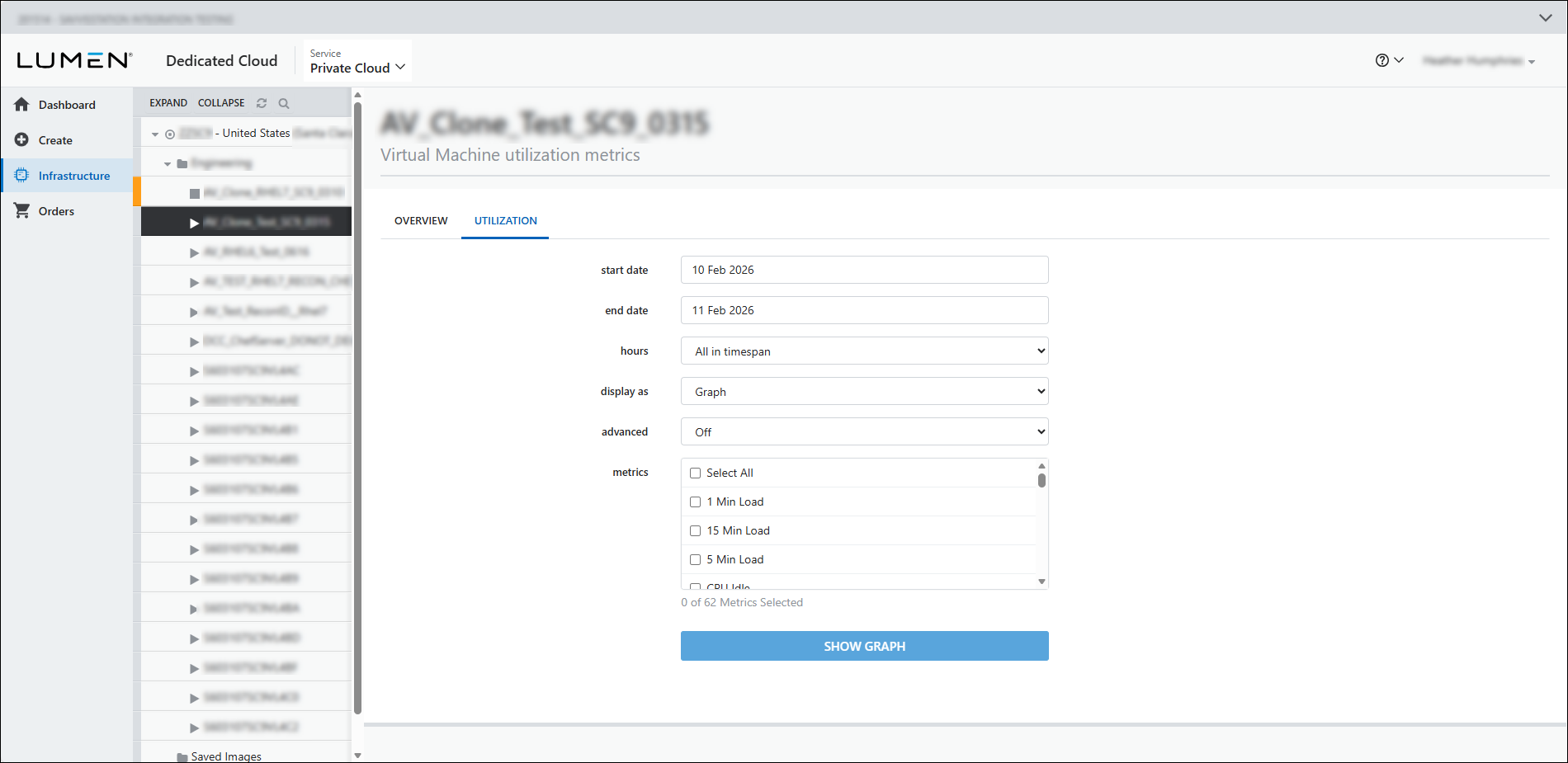
- Complete the form by selecting the metrics you want to view. Choose to view the metrics as a graph or table. When you're done, click Show Graph or Show Table.



