Updating information in an LNP ticket
After you create an LNP ticket in Lumen Connect®, you can edit the contact information, add notes to communicate with Lumen, or add attachments to update the ticket without having to close it and create a new ticket.
Note: You cannot make changes to closed tickets.
To update information in an LNP ticket:
- Using the left menu, click Services, click Service Tools & Portals, then click ELS & LI Management.
- If you have more than one customer number on your enterprise ID, select the customer number you want to work with, then click PROCEED.
- Click LNP Tickets.
Lumen Connect lists all open LNP tickets for your organization with category, request type, status, and last updated date.
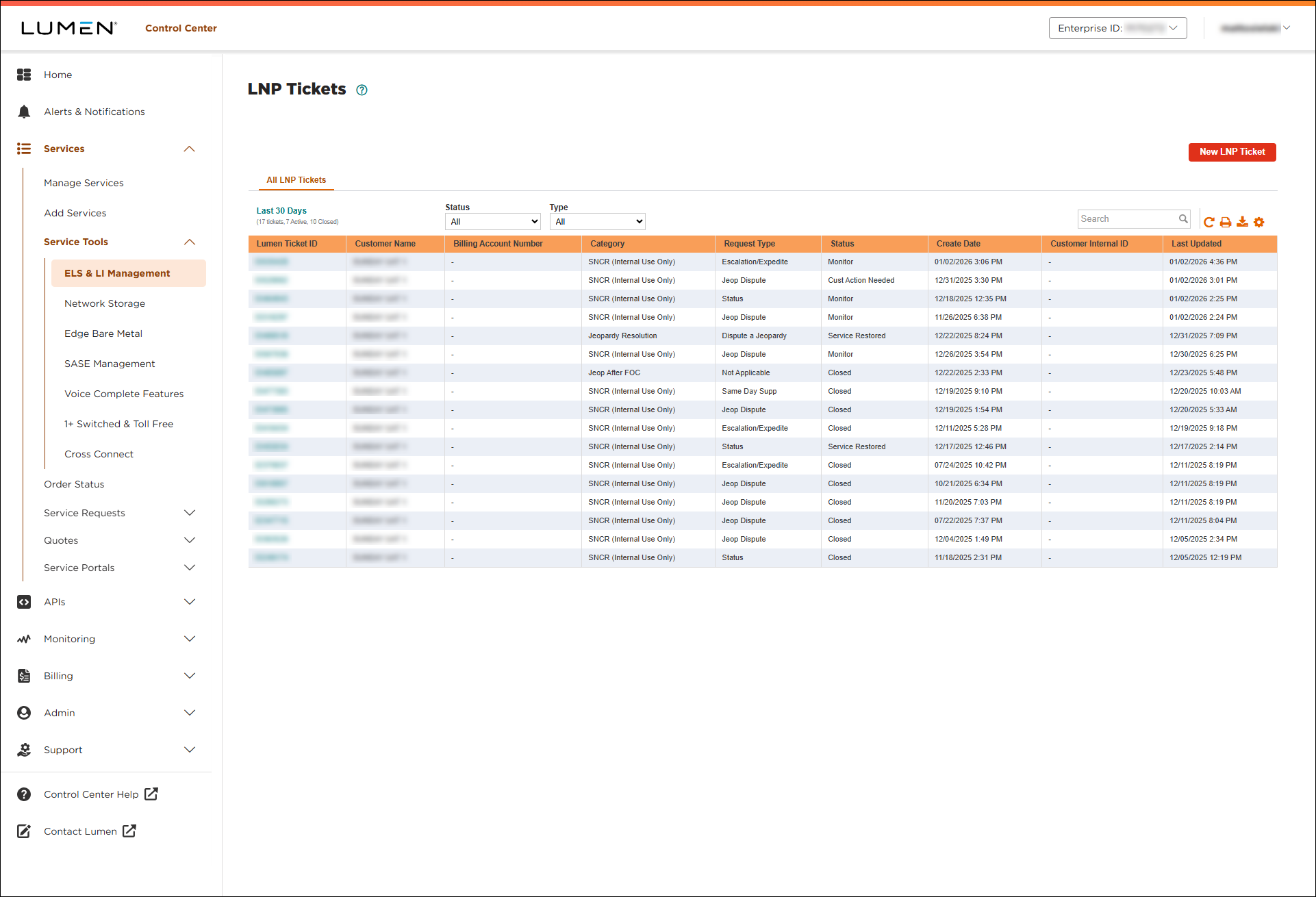
- Search for the LNP ticket you want to work with by doing one of the following:
- Scroll through the LNP tickets. If you have more than 10 LNP tickets, you can view the rest of your LNP tickets by using the arrows at the bottom of the list.
- Search for the LNP tickets by typing search criteria in the Search field.
- Filter the list of LNP tickets using the Category or Status lists.
- Scroll through the LNP tickets. If you have more than 10 LNP tickets, you can view the rest of your LNP tickets by using the arrows at the bottom of the list.
- When you find the LNP ticket you want to update, click the link in the Ticket ID column.
Lumen Connect shows details for the LNP ticket. (Before you update the ticket, review it to verify you're updating the correct one.)
- Make your updates to the ticket:
- To add a note (to communicate with your Lumen technician), type it in the Add a Note field, then click Save Note.
- To add a tracking ID to help you track the ticket in another system within your organization, type it in the Customer Internal ID field, then click Save Customer Tracking ID.
- To add a parent order ID related to the ticket, with your Lumen technician), type it in the Parent Order ID field.
- To attach a document (such as a more detailed explanation of the problem or additional details pertaining to your request), click Choose File (in the Attachments section), browse to locate the file and click Open. You can upload up to two files—no more than 2MB each.
- To update the contact information for the ticket, edit the information for the contact(s) in the Contact Information section.
- To add a note (to communicate with your Lumen technician), type it in the Add a Note field, then click Save Note.
- When you're done, click Save Changes.
Lumen Connect updates the LNP ticket.



