Creating an LNP ticket
Use Lumen Connect® to create and manage LNP tickets to communicate with the Local Number Portability team. For example, you can dispute a jeopardy, report a service outage, or request a project port. After you create an LNP ticket, you can update it (to add attachments, adjust contact information, or add notes), or close it.
Accidental disconnect service restoral
Lumen supports service restoral of accidentally disconnected phone numbers if less than 30 days from completion date. Phone numbers disconnected outside of 30 days are restored only with the approval of the LNP Help Desk manager. If restoration is possible, phone numbers are restored at the rate of $95 per phone number.
Expediting ports
Lumen supports expedites for standard industry scenarios:
- out-of-service condition
- medical emergency or facility (e.g., hospital—not a doctor’s office)
Lumen attempts expedites with donor carriers if pre-authorization has been established with the donor carrier to assist. Any expedite attempt must be authorized by the LNP team of the donor carrier and must be someone authorized to provide a FOC. This authorization needs to include the contact person’s name, direct phone number, and email.
- You must provide a port date that the donor carrier agrees to port on.
- Create an LNP ticket and select Order Action/Status Request, then select Request an Expedite.
- If an authorized party cannot be provided, Lumen attempts the expedite with the donor carrier for a customer charge of $75 per BTN. We cannot guarantee the expedite.
Snapbacks
A snapback is placed in motion when a telephone number that has ported to Lumen from another carrier is requested to be returned to the former carrier, or an internal port is requested to be returned to the former Lumen customer/local service provider.
Snapbacks are billed at $300 per phone number.
If a snapback is not possible, you will need to request a winback with the previous carrier. When a winback is required, you will not be changed the snapback charge. If an expedite is requested, an expedite fee will be charged.
Slammed phone number (unauthorized port out)
If a TN has been slammed or ported away in error, please contact the LNP Help Desk by creating an LNP ticket in Lumen Connect or by calling the LNP Help Desk at 866-697-5881, option 3, then 1. A Lumen LNP agent will walk through the appropriate slamming process to return the phone number to the Lumen account.
Snapbacks will only be attempted on the same day that the phone number was taken—otherwise a winback order will need to be placed by the customer, and the order will be escalated by Lumen with the other carrier.
In cases of validated slams, no expedite fees or snapback charges will be charged.
To create an LNP ticket:
- Using the left menu, click Services, click Service Tools & Portals, then click ELS & LI Management.
- If you have more than one customer number on your enterprise ID, select the customer number you want to work with, then click PROCEED.
- Click LNP Tickets.
Lumen Connect lists all open LNP tickets for your organization and tickets closed within the past 30 days.
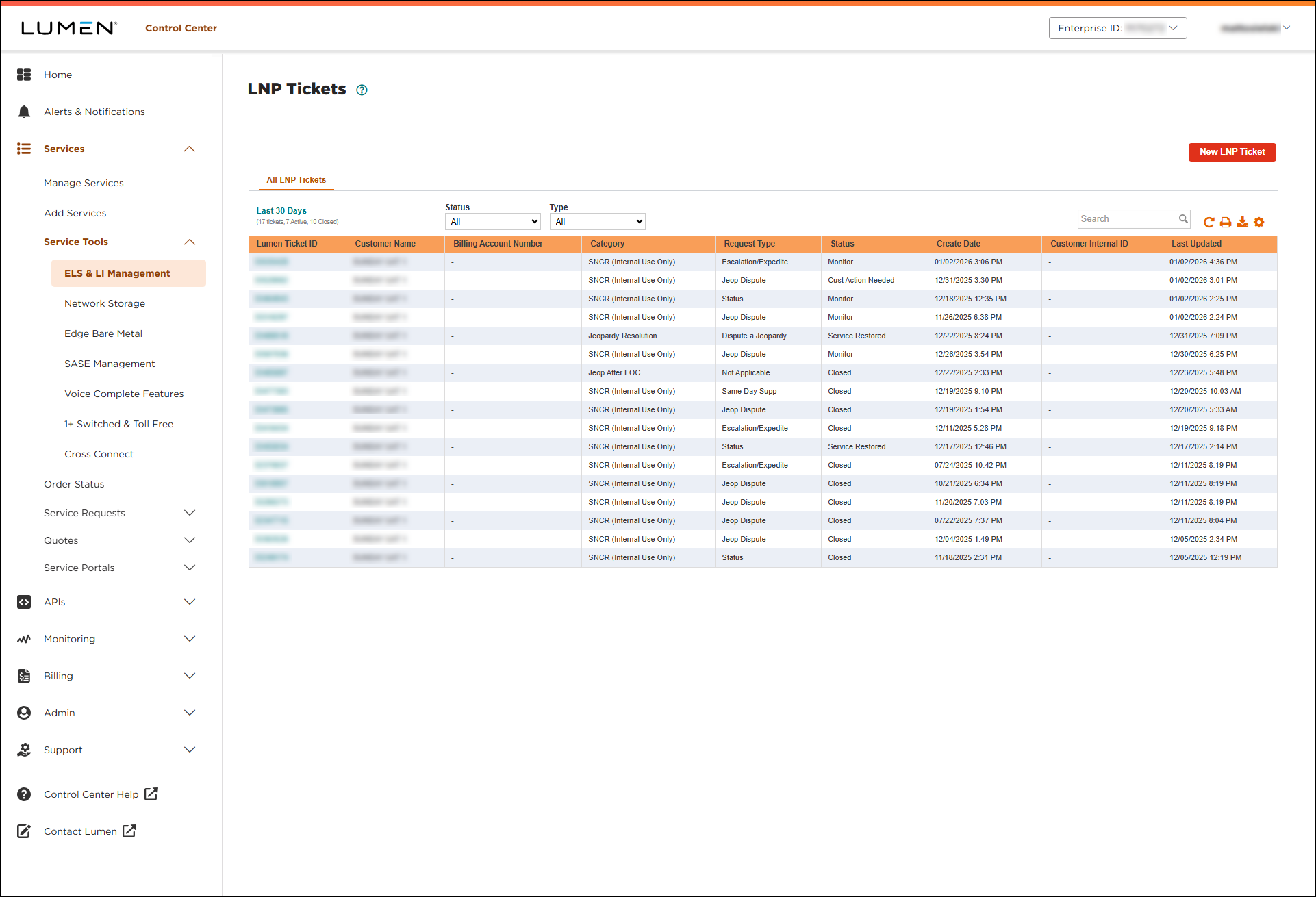
- Click New LNP Ticket.
- From the Select Category list, select the type of issue or question you're opening the ticket for:
- Directory Services—directory listing tickets.
- Jeopardy Resolution—resolving rejections.
- Order Action/Status Request—expedite requests, current status of order, CSR/LSR SLA exceeded.
- Problem Submitting Order—redirects to Portal Support team, pre-LNP.
- Service Outage—post-port voice quality issues, snapbacks, accidental disconnect service restorals.
- Supps and Cancels—same-day date changes or cancels.
- System Issue—day of port activation failures.
- New Project Request—requesting a complex or large TN quantity port.
- Dispute Port Out—dispute a pending port out and/or ported phone numbers.
- General Questions—any questions related to porting or who owns a phone number.
Lumen Connect builds the form based on the category you selected.
- Use the Customer Number and Billing Account lists to select the account related to your request. If your issue isn't related to a specific account, select any billing account.
- In the LNP Ticket Information section, do the following:
- In the Request Type list, select the type of request.
- Type and additional information to help Lumen process your request.
- Type the Lumen parent order ID.
- If you're tracking the ticket in another system within your organization, you can type it in the Customer Internal ID field.
- In the Request Type list, select the type of request.
- Fill in the remaining fields for the request. Depending on the category and request type you selected, you may see fields for an authorization contact name or for uploading a copy of your letter of authorization (LOA).
- In the Attachments section, you can attach any documents (such as a more detailed explanation of the problem or additional details pertaining to your request), you can upload up to five documents (up to 2MB each). To attach a document, click Add Attachment, browse to locate the file, then click Open.
- In the Contact Information section, select how you want to be notified of status updates for this ticket and verify your contact information (or update the information for the person you'd like to be contacted with updates).
- If you need to add a secondary contact for this ticket, click Add Secondary Contact, then type their name, phone number, and email address.
- When you're done, click Submit LNP Ticket.
Lumen Connect creates your LNP ticket. You can now track its status online. You can also update your ticket or close the ticket later as needed.
SLAs for LNP tickets
| Priority | First update target | Service restoral target |
| Outage | 1 hour* | 4 hours* |
| Impaired | 1 hour* | 12 hours* |
| Escalation | 1 hour* | 24 hours* |
| General inquiry | 4 hours* | 48 hours* |
* In business hours based on Monday–Friday, 6:00am–5:00pm MT (excluding Lumen holidays).



