Viewing a standard summary billing report
You can view standard summary billing reports in Lumen Connect®. Standard reports provide an overview of trends in your billing data. You can also create a custom summary billing report if you want to tailor a report to your needs. You can also add a description to a service or create a hierarchy to add more meaning to your billing reports.
Need to view detailed billing trends? View a standard detail billing report or create a custom detail billing report.
To view a standard summary billing report:
- Using the left menu, click Billing, then click Billing Reports.
Lumen Connect shows a list of billing reports for your organization.
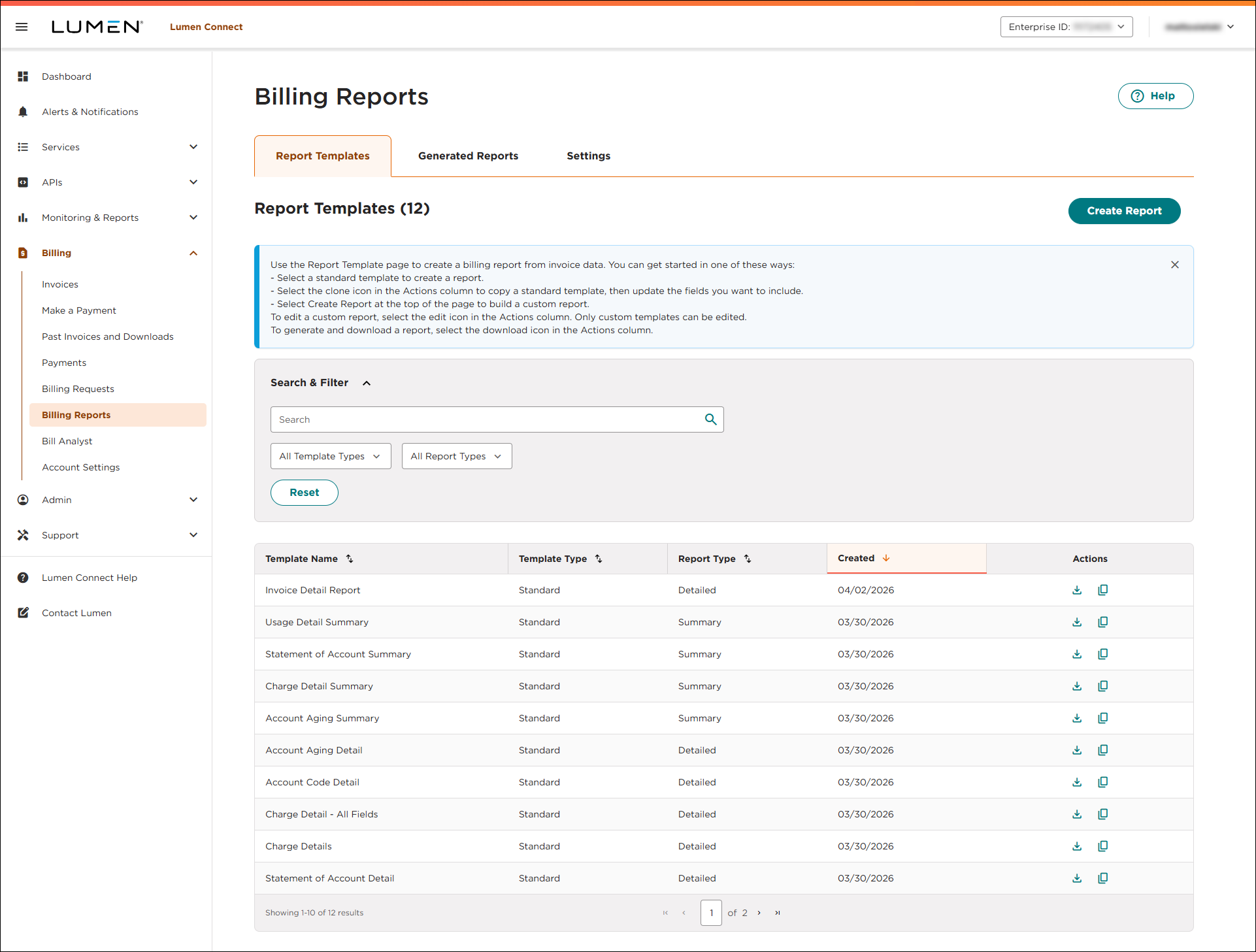
- On the row for the report you want to view, click the icon (in the Actions column). To filter the list to show summary reports, click the All Report Types list, then select Summary.)
- Use the filter options to specify the data, structure, and frequency for the report:
- Select the customer number you want the report to include.
- In the Scope field, select what data you want the report to include:
- To include all billing accounts under the customer number, select All Accounts.
- To specify billing accounts to include, select Specific Accounts, use the Accounts Selection field to select the checkbox next to billing accounts you want to include, then click Apply.
- To use a hierarchy, select Hierarchy, then select an option from the Hierarchies list.
- To specify services to include, select Services, click Select Services, then use the window that appears to search for and select the services you want to include. When you're done, click Save.
- To include all billing accounts under the customer number, select All Accounts.
- In the Report Frequency field, select whether you want to view a one-time or recurring report:
- To create a one-time report, select Once, then use the Month Selection field to select the month you want to view a report for.
- To create a recurring report, select Monthly, use the Frequency Month field to select data for the current month or the previous month, then select the day of the month you want the report to run. (For example, you could set up the report to run monthly on the first of the month and to have the report show data for the previous month.)
- To create a one-time report, select Once, then use the Month Selection field to select the month you want to view a report for.
- In the Download File Type field, select the radio button for the type of file you want to use for the report.
- Select the customer number you want the report to include.
- Click Generate.
Lumen Connect creates the report and shows the Generated Reports tab. When the Generating label disappears, the report is ready for you to download. Lumen Connect stores reports for 15 days from the day they're created.
- To download the report, click the
download icon. (Once you download the report, you can delete it by clicking thedelete icon.)



