Deleting a notification setting
If you no longer need a notification setting, you can delete it from Lumen Connect®. If you only want to temporarily stop notifications (e.g., if you are on vacation), you can edit the notification setting to disable it and then activate it again later. If you're a Lumen Connect system administrator, you can also create, edit, or delete notification settings for other users in your organization.
To delete a notification setting:
- Using the left menu, click Alerts & Notifications.
Lumen Connect lists all your notifications. If you're a Lumen Connect system administrator, you see your notifications by default, but you can use the list to select another user in your organization to view their notifications.
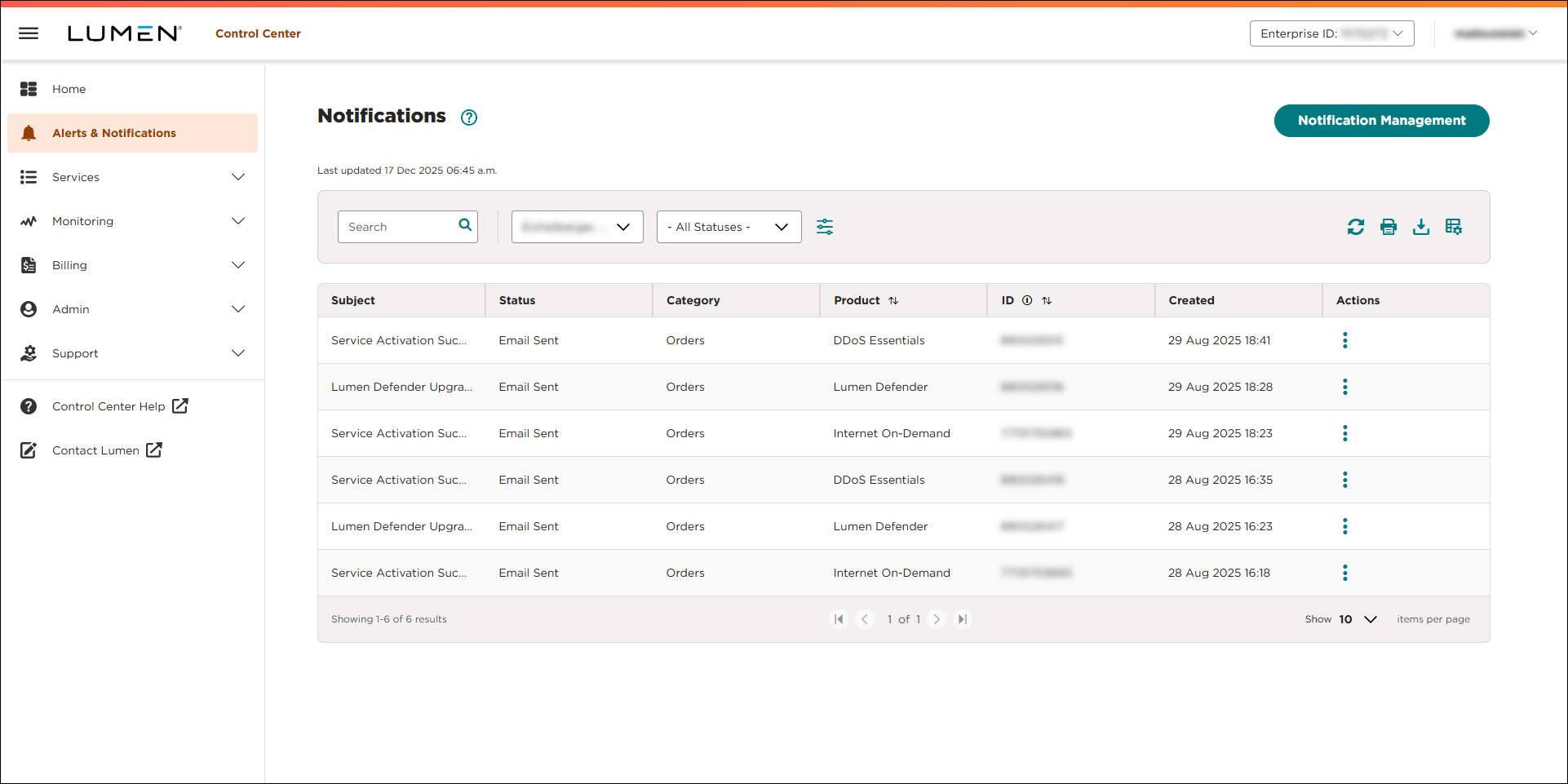
- Click Manage Notification Settings. (If you're a system administrator, click Notification Management.)
Lumen Connect lists all notification settings for your user profile. (If you're a system administrator, you'll see all the notification settings for your organization—including your own.)
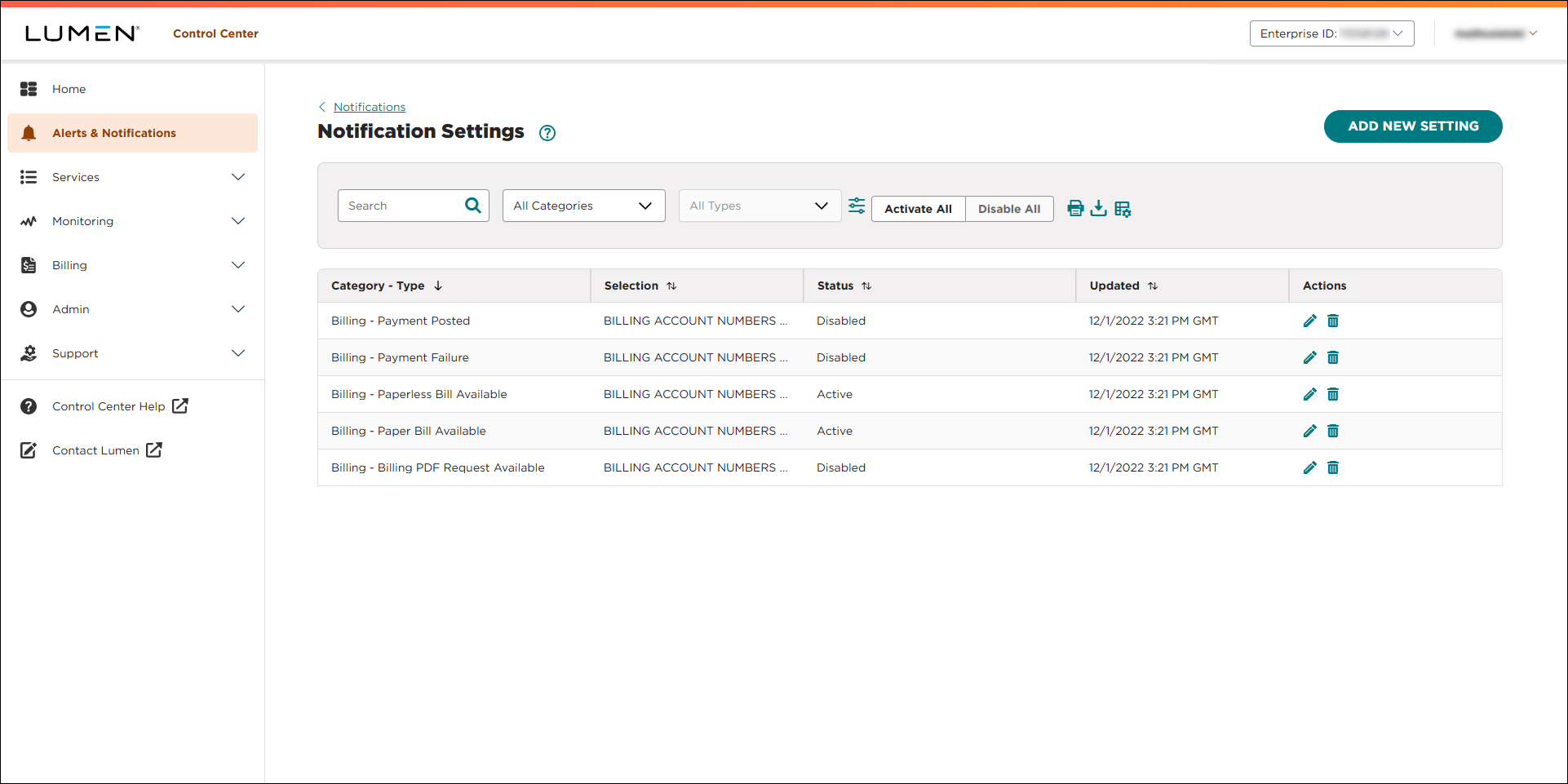
- On the row for the notification setting you want to delete, click the
delete icon.
- In the confirmation window that appears, click OK.
Lumen Connect deletes the notification setting.



