Creating a change request
Using Lumen Connect®, you can request changes to your Lumen services online. For example, you can request additional IP addresses, port in phone numbers, request DNS changes, etc.
To create a change request:
- Using the left menu, click Services, click Service Requests, then click Change Requests.
Lumen Connect shows all open and recently completed change requests (by default, within the past 30 days) for your organization with a status for each request:
- Saved—change request draft that hasn't been submitted.
- Submitted—we received your request.
- In Progress—a Lumen representative is assigned to and working on your request.
- Complete—we finished working on your request.
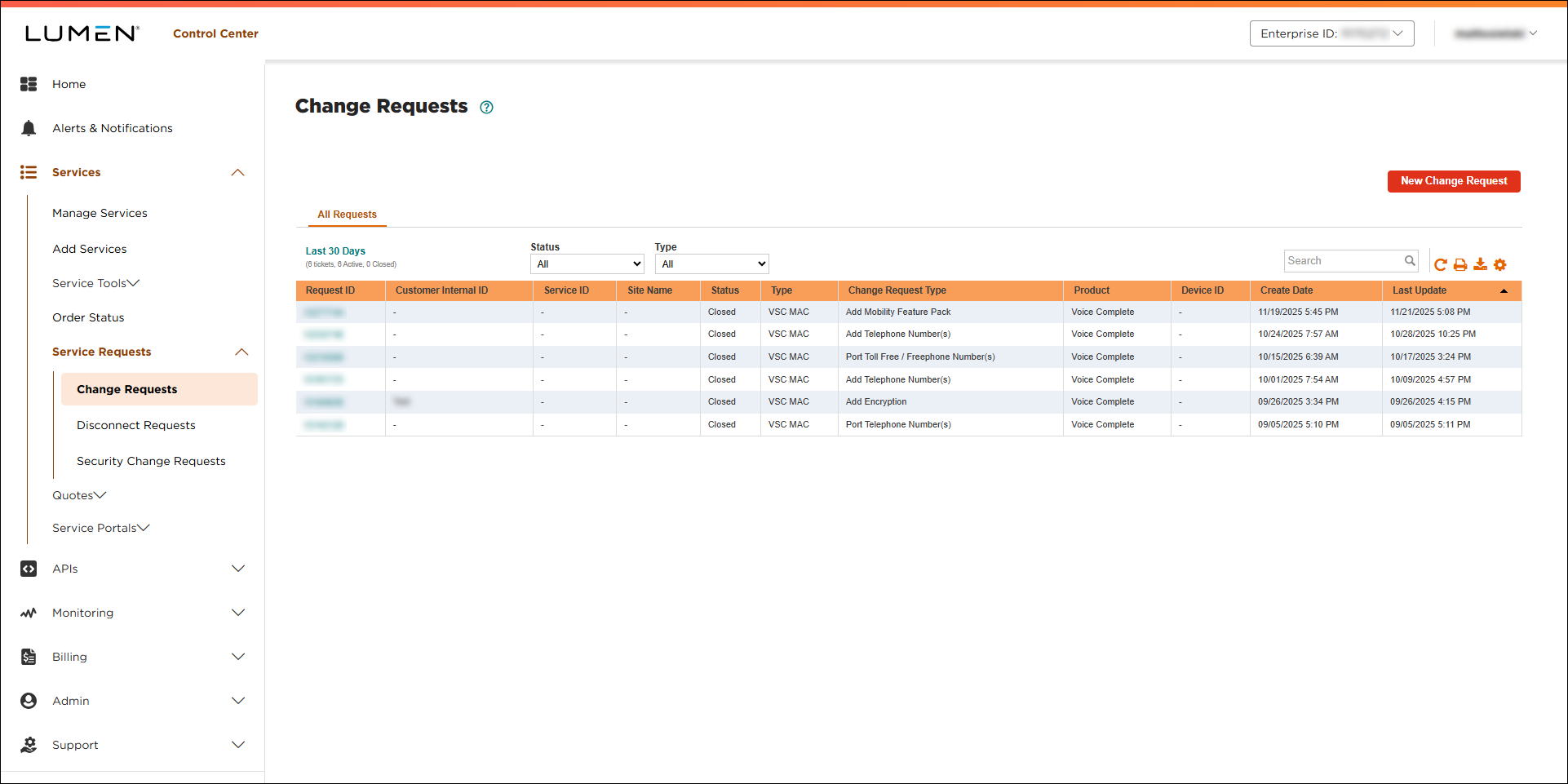
- Click Create Request.
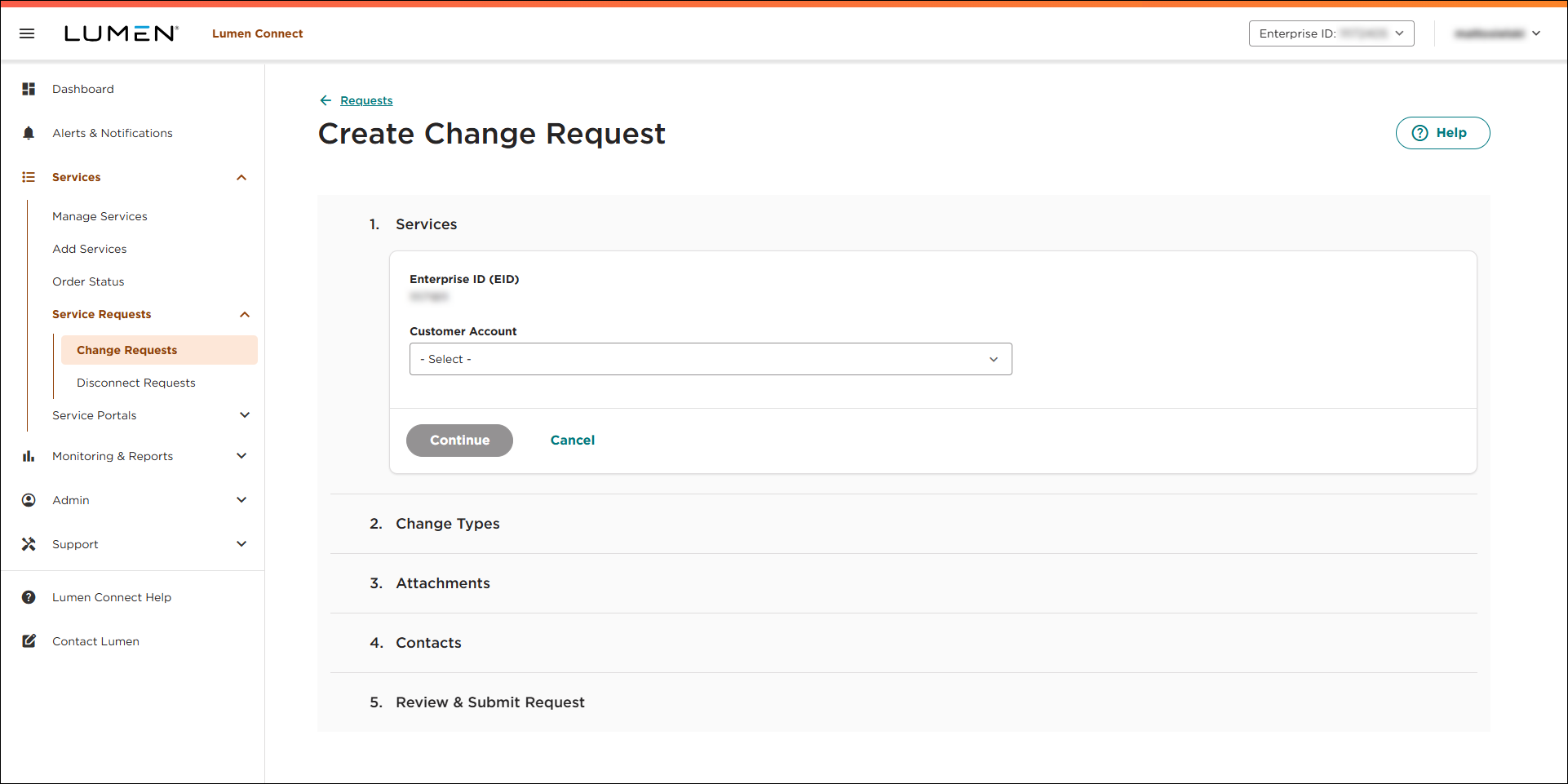
- In the Services section, do the following:
- Use the lists to the select customer account and billing account with the service(s) you want to request changes for.
- If you're tracking the change request in another system within your organization, you can type it in the Customer Tracking ID field.
- Tell us whether you're requesting a DNS change:
- If you're requesting a DNS change, select Yes, click Continue, then skip to step 5.
- Otherwise, select No, then continue with step d.
Lumen Connect lists the services on the customer number and billing account you selected.
- If you're requesting a DNS change, select Yes, click Continue, then skip to step 5.
- Add the service(s) you want to change:
- To add a service to the change request, select the checkbox on the row for the service. (To remove a service from the change request, click the
delete icon next to the service in the Selected Services box.)
Lumen Connect lists the service in the Selected Services box.
- To add a service you don't see listed, click Service ID or Phone number not listed?, type the service ID or phone number, then type the address for the service. (To include another service, click the
add_circle button.)
Lumen Connect adds the service to the Selected Services box.
- To add a service to the change request, select the checkbox on the row for the service. (To remove a service from the change request, click the
- When you're done adding services to the change request, click Continue.
- Use the lists to the select customer account and billing account with the service(s) you want to request changes for.
- In the Change Types section, use the Change Types column to select the type of change(s) you want to make for each service, then click Apply. (Based on the service ID, Lumen Connect lists the available changes.)
- When you're done, click Continue.
Lumen Connect builds the form(s) for the service ID(s).
- For each service, fill in the details for the change you're requesting. When you're done, click Continue.
- In the Attachments section, attach any documents (such as additional details pertaining to your request). You can upload up to ten documents (up to 2MB each). To attach a document, click Add Attachment, browse to locate the file, then click Open. When you're done, click Continue.
- In the Contacts section, do the following:
- In the Requestor Telephone Number field, type the phone number you want us to use when contacting your organization about this request.
- In the Primary Contact section, use the fields to provide a name, email address, and phone number of the primary contact for this change request. (By default, Lumen Connect uses the information in your user profile. You can select another user on the enterprise ID or type in contact information for someone else.)
- If needed, use the Seconday Contact section to provide the name, email address, and phone number of a secondary contact for the change request.
- When you're done, click Continue.
- In the Requestor Telephone Number field, type the phone number you want us to use when contacting your organization about this request.
- Review the summary of your request, then click Submit.
Lumen Connect submits the change request. You can now track the status of the request in Lumen Connect (along with any other change requests for your organization).



