Assigning a Voice Complete phone number to a user
As a Voice Complete Feature Manager administrator, you can use Lumen Connect to assign a Lumen® Voice Complete® phone number to someone in your organization. Once you assign the phone number, the user can manage their profile information and calling features on their own (or you can manage them on their behalf).
To assign a Voice Complete phone number to a user:
- Using the left menu, click Services, click Service Tools, then click Voice Complete Features.
Lumen Connect shows the groups associated with your Voice Complete service.
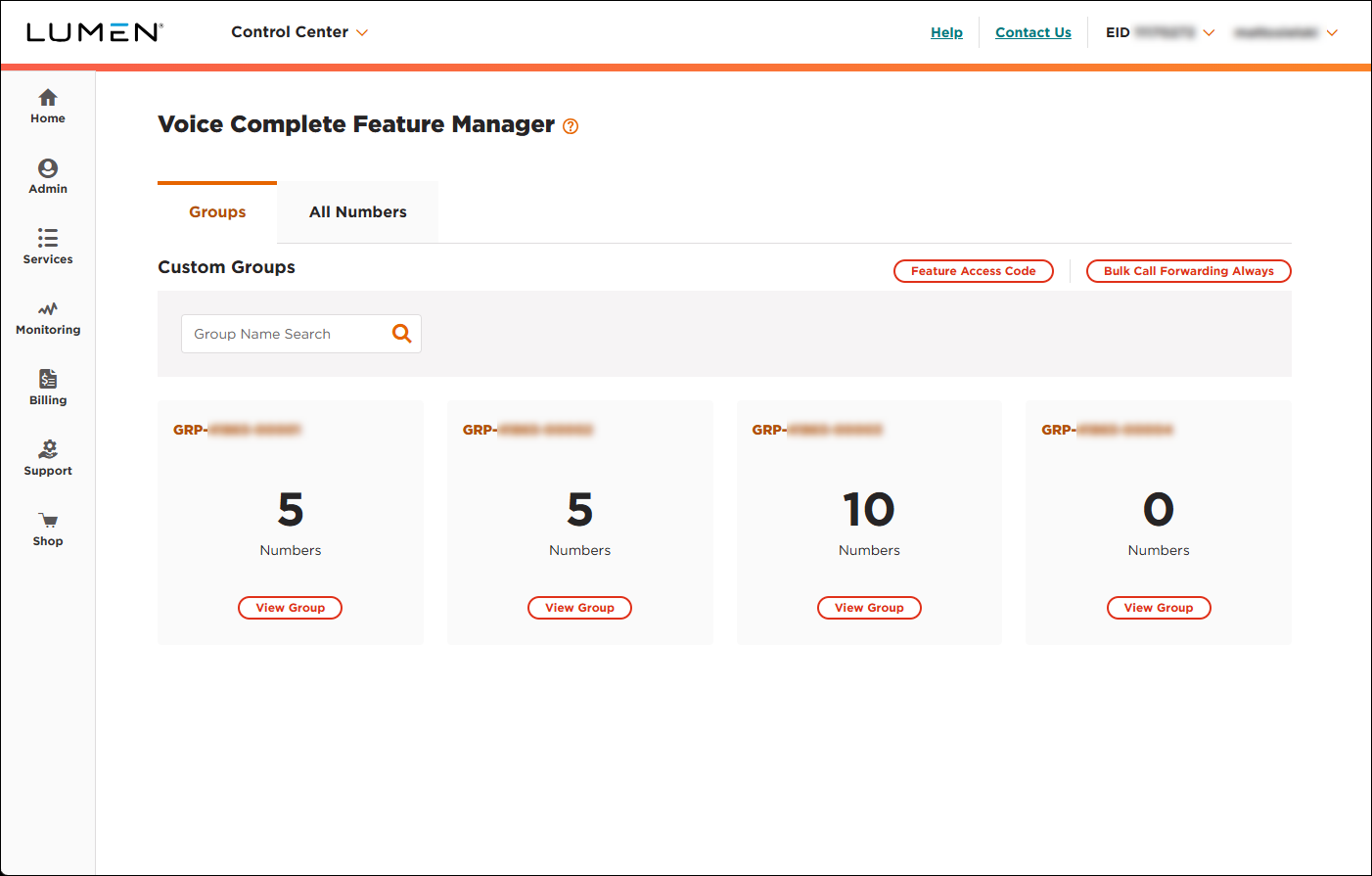
- Search for the phone number you want to work with by doing one of the following:
- If you know the group the phone number belongs to, click View Group on the card for the group.
- Otherwise, click the All Numbers tab, then search for, sort, or filter the list of phone numbers to find the one you're looking for.
- If you know the group the phone number belongs to, click View Group on the card for the group.
- When you find the phone number, click the Manage link (in the Actions column) on the row for the phone number.
Lumen Connect shows the calling features for the phone number.
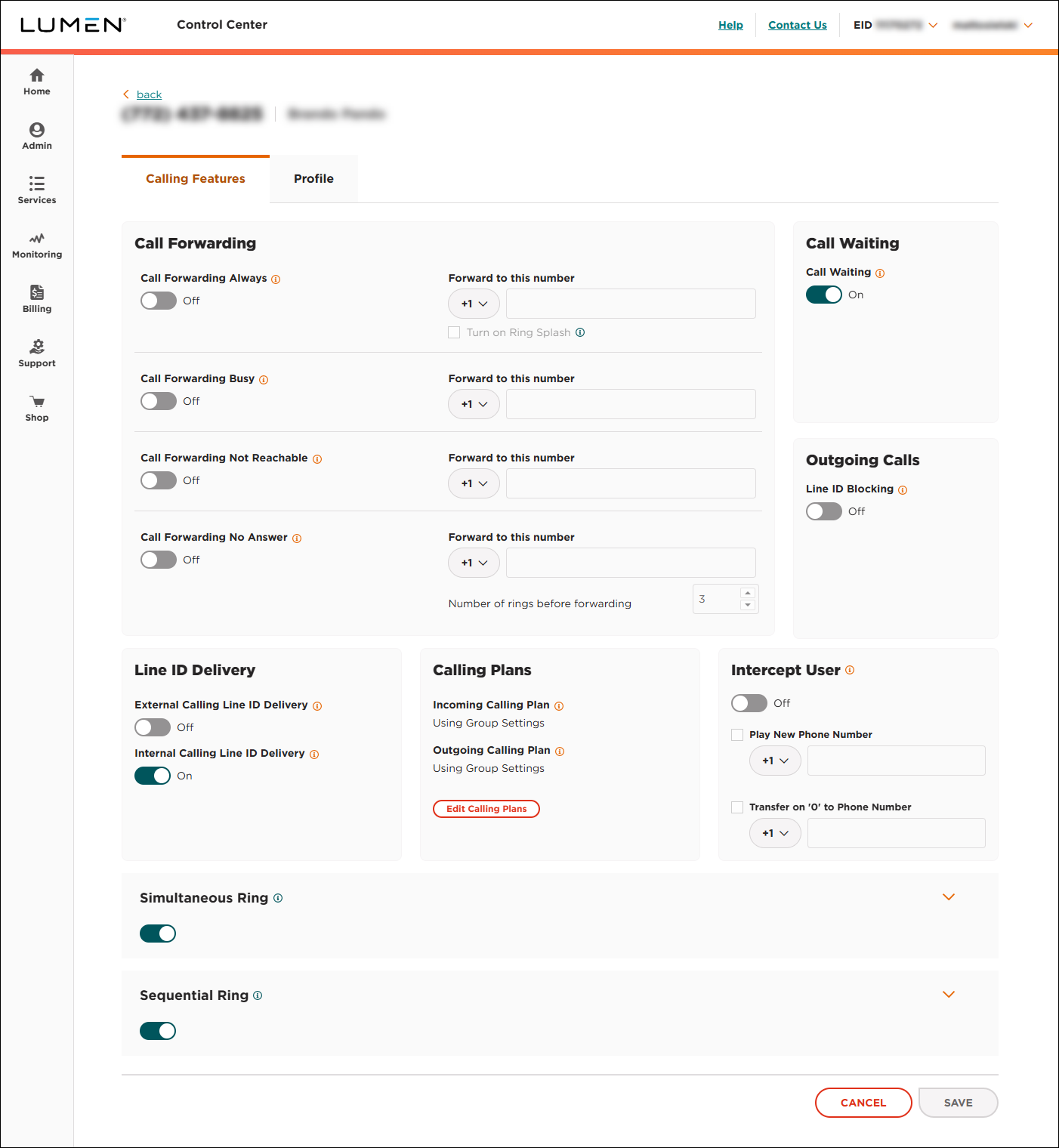
- Click the Profile tab.
Lumen Connect shows the profile information for the Voice Complete phone number.
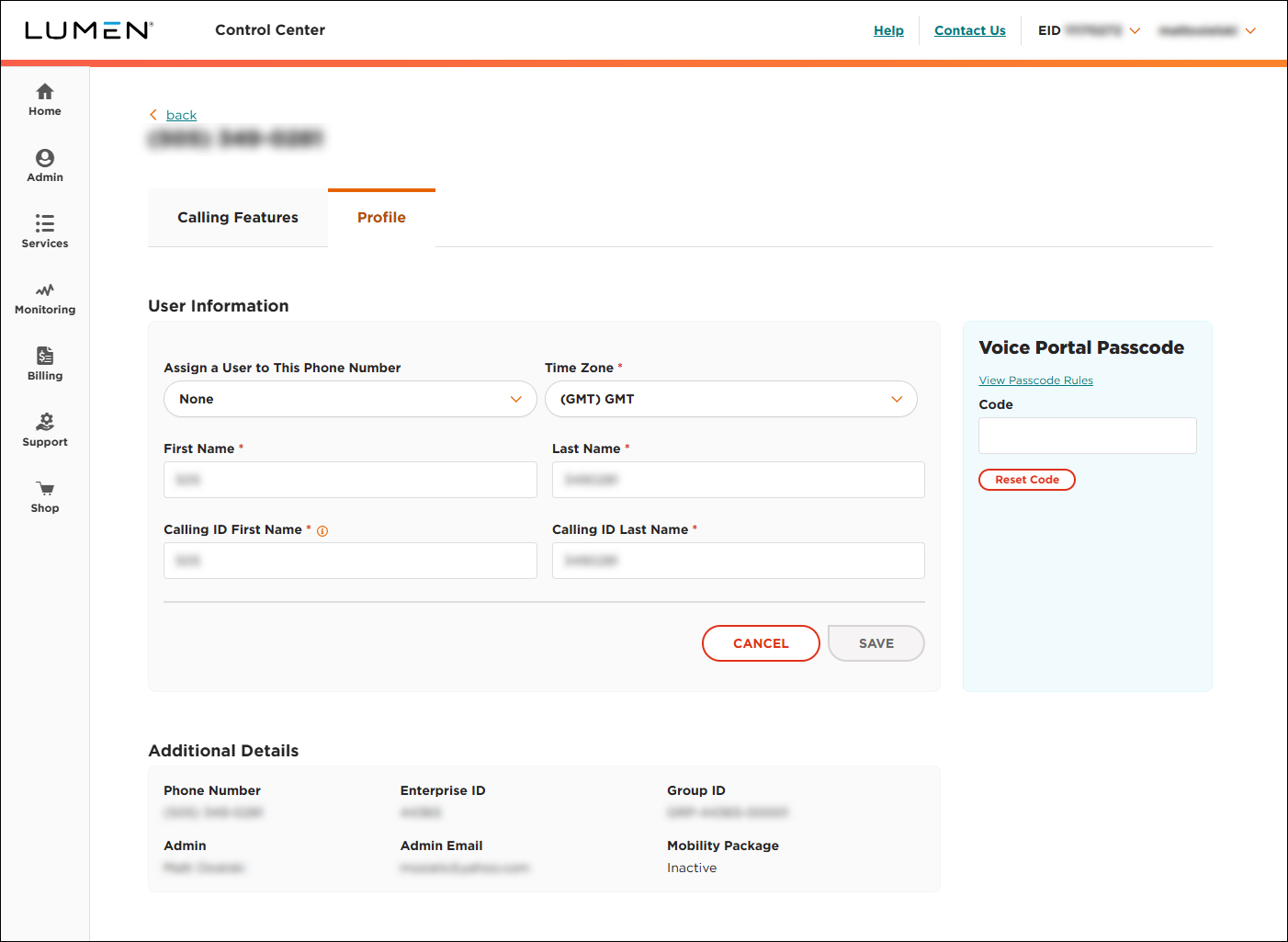
- In the User Information section, use the Assign a User to This Phone Number field to select the user you want to assign. (If you don't see the user in the list, create a new user and then try to assign the phone number to the user.)
Lumen Connect assigns the phone number to the user. When they sign in to Lumen Connect, they can manage their profile and calling features.



