Navigating around your phone (VVX 50x/60x series)
Need help getting started with your VVX 50x/60x series phone? Take a tour to learn about the features of your phone.
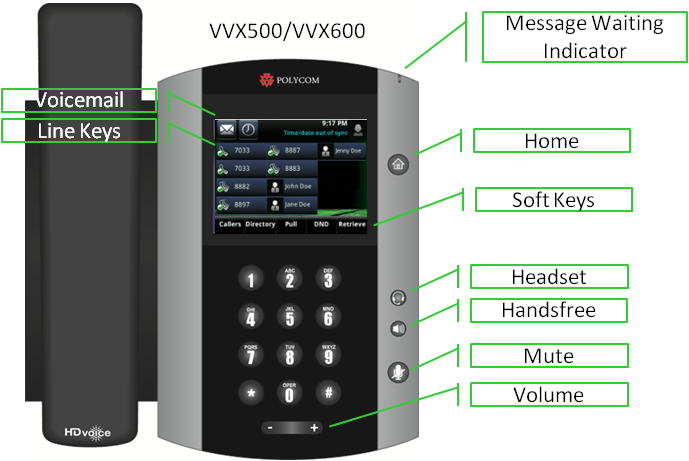
Color touchscreen display
The display on your VVX 50x/60x series phone is touch-sensitive. Tap the screen to use soft-key functionality for accessing features such as messages (envelope icon) and call logs (clock icon). Swipe the display up, down, left, or right to navigate through multiple options, screen views, and directories.
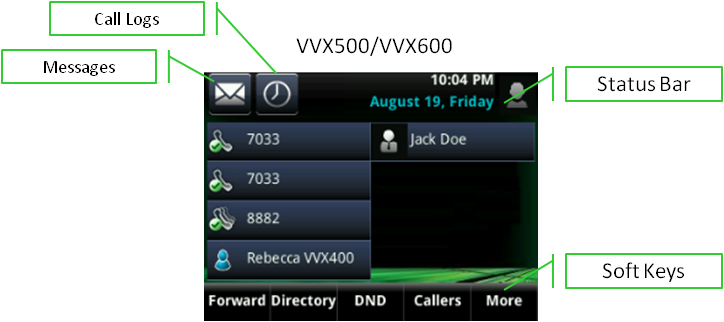
Line keys
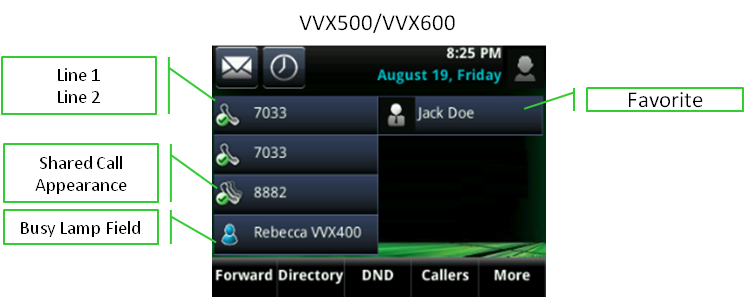
The VVX 50x has 12 programmable line keys and the VVX 60x has 16 programmable keys. A standard configuration includes two primary line keys—line 1 and line 2. Remaining keys can be programmed as shared call appearances, busy lamp fields, or favorites.
Line key icons include:
- handset/checkmark icon—primary line(s) (next to your extension) or shared call appearance (next to another person's extension)
- blue silhouette icon—busy lamp fields
- gray silhouette icon—favorites
Soft keys
Soft keys are buttons at the bottom of the display.
Note: Soft key buttons change as you use your phone, to use them, tap the screen.
Often you'll see a More soft key on the right of your display. Tapping More allows you to see additional features. (You can tap More while on a call and you will not get disconnected.)
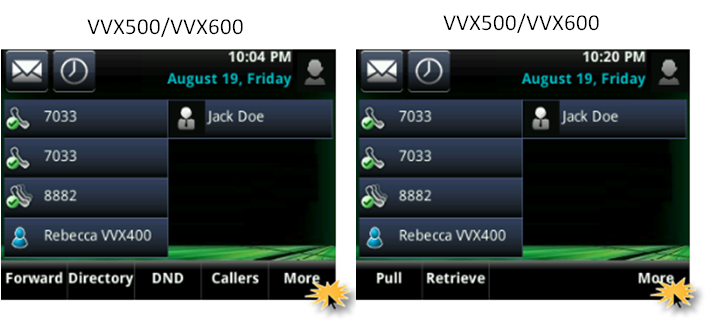
Typical soft keys while your phone is idle (on-hook):
- Callers—displays the call lists screen showing up to the most recent 100 received, placed, and missed calls
- Pull—moves an active call from your anywhere mobile phone to your desktop phone
- DND (do not disturb)—sends callers directly to voicemail
- Retrieve—picks up a parked call
Typical soft keys while you are on a call (off-hook):
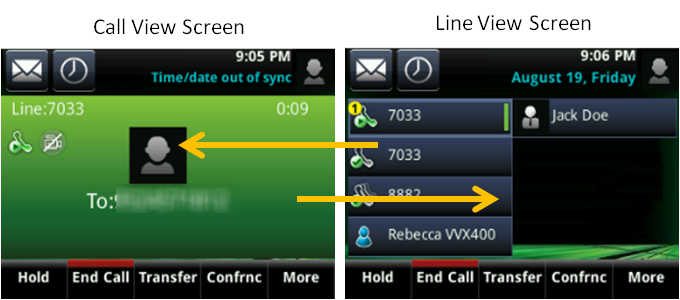
Transfer soft key
Use the Transfer soft key to send your caller to another person internally or externally. The Transfer soft key appears at the bottom of the display, but only when you're on an active call. There are two transfer types: consultative and blind. Consultative is the default and allows you to announce the caller before transferring. Blind allows you to transfer the call without speaking to the person. You can change the default transfer type at any time.
Voicemail icon
To access your voicemail box, tap the envelope icon, then enter your passcode when prompted. After you're logged in, you can listen to, save, delete, and forward messages and manage mailbox features, such as greetings. If you have shared lines on your device for other individuals, after tapping the envelope icon, you'll need to tap message center, then tap your line. This directs you to the correct mailbox.
Hold soft key
To place your caller on hold, tap the Hold soft key. A blinking, red line key indicates that a line is on hold. To return to your caller, tap the blinking line key or the Resume soft key.
Home button
In addition to soft keys, you can access additional options by pressing the Home button, which takes you to home view. See a full list of features by tapping icons while in home view.
As you navigate deeper into advanced options, press the Home button to return to the main screen.
Typical home view options include (these options vary, depending on how your administrator set up your phone):
- New Call—place a call from your recent calls list
- Messages—access your voicemail
- Directories—access saved contacts and call history logs
- Forward—send callers to another person
- DND—send callers directly to voicemail
- Settings—change settings options such as ring tones, date/time formatting, etc.
- Applications—link to a browser
Navigation keys
Navigation keys are similar to using a joy stick. Press up, down, left, and right to move through screens, lists, settings, and more. The round button in the center of the navigation key is the select key; this plays the same role as enter on your keyboard.
Headset button
Make and answer calls using your headset, if you have a headset connected to your phone, by pressing the Headset button. Your headset must be connected using the headset jack on the back of the phone, or one of two USB ports. The Headset button glows green during an active call. To disconnect your call, press the Headset button.
Speakerphone button
Press the Speakerphone button to make and answer incoming calls without using your handset. The button glows green during an active call. To disconnect your call, press the Speakerphone button.
Mute button
Microphones on the VVX 50x/60x phones are very sensitive! We recommend you mute your phone when you're not speaking or when speaking to someone not on the call. The Mute button glows red when mute is enabled. To unmute and return to your call press the Mute button again.
Volume button
The Volume button is located below the keypad. Press it to increase (+) or decrease (-) the volume for the handset, headset, speaker, or ringer.



