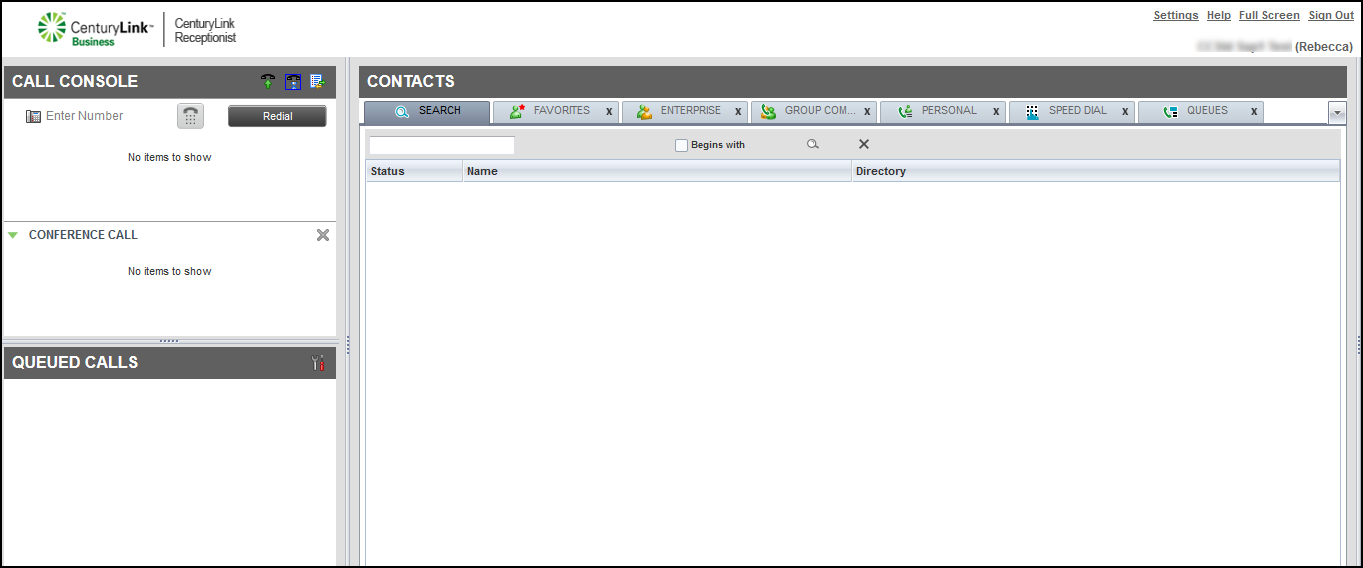
Signing in to Receptionist Console
After the first time you access and sign in to Receptionist Console, you can access the application and sign in using a browser. When you're done using Receptionist Console, you can sign out.
First time signing in? Learn more about Receptionist Console
Note: You can only have one active session of Receptionist Console going at a time. If you sign in from a second location, you’ll get the following alert from the first session’s browser: You have been signed out as you have signed in from another location.
To sign in to Receptionist Console:
- Open a browser and do one of the following:
- Type https://parwc2.hv.centurylink.com/receptionist/ in the URL bar.
- Click your Receptionist Console bookmark.
- Type https://parwc2.hv.centurylink.com/receptionist/ in the URL bar.
- Type your user ID and password (found in the welcome email we sent you). Remember, the user ID and password are case sensitive.
- To stay signed in to the Receptionist Console, select the Stayed Signed In checkbox. (If you stay signed in, you’re automatically reconnected and signed in to the server when there’s a network connection.)
- To bookmark the Receptionist Console URL, click the Bookmark this Page link, then Ctrl + D.
- Click Sign In.