Viewing a list of Lumen Connect users
In Lumen Connect, you can view a list of users on an enterprise ID, including a status for the user and the date the user last signed in. From the list, you can view details for a user and take actions such as resetting their password, deleting them, deactivating or reactivating them, or changing their permissions or assigned accounts. You can also download the list of users for processing outside of Lumen Connect.
Looking for a list of accounts rather than users? You can view a list of accounts on an enterprise ID.
Looking for a list of services? You can also view a list of services on an enterprise ID.
To view a list of Lumen Connect users:
- Using the left menu, click Admin, then click Users.
Lumen Connect lists the users for your organization. For each user, Lumen Connect shows whether the user is a system administrator, what two-factor authentication (2FA) method is set for the user, when the user last signed in, and the user's status: Active, Pending, or Inactive.
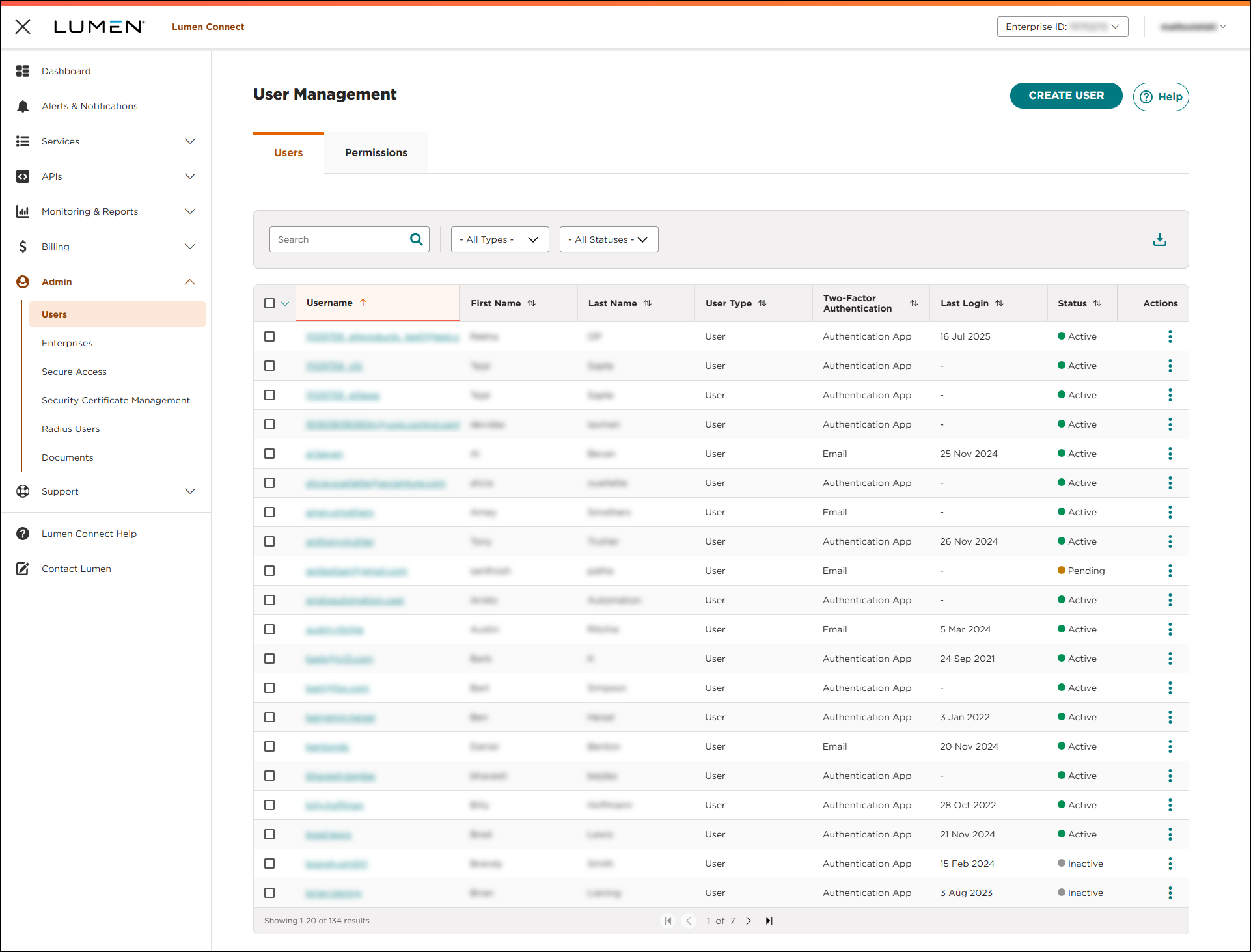
- To download the list of users, click the icon.



