Viewing a list of data center resources
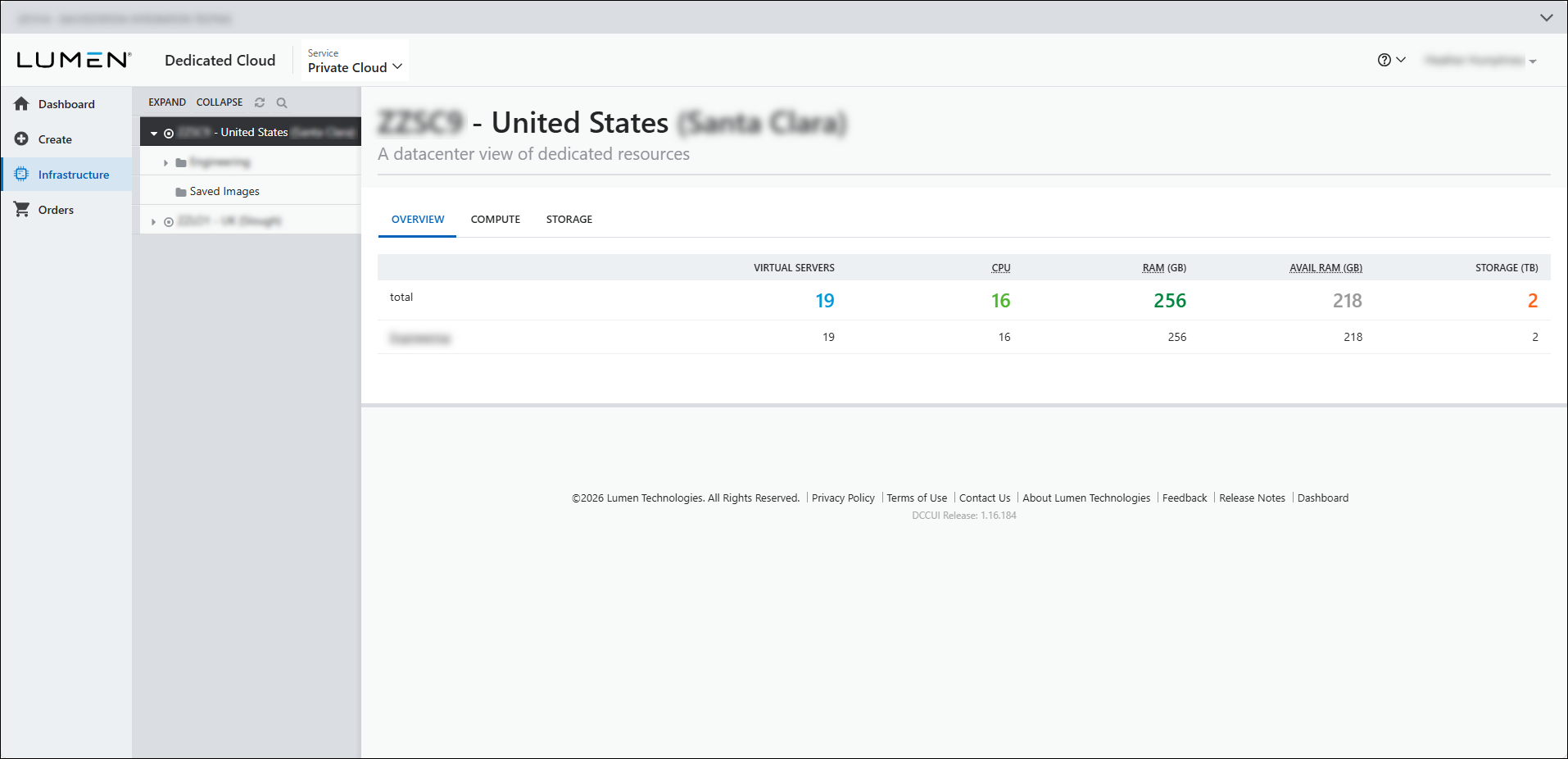
Use the Dedicated Cloud Compute portal Infrastructure tab to see a data center view of your dedicated resources specific to each data center in Lumen® Dedicated Cloud Compute. The Overview tab lists the clusters you have in each data center and lists the number of virtual machines, physical CPUs, physical and available RAM, and storage in each data center. You can open a cluster view of resources from within this tab. The Compute and Storage tabs show information on clusters hosts, instances, and storage similar to the information seen in the Managed Services portal, and the global Dashboard view. You can also view resources at a cluster view and at a global view.
Note: To access the Dedicated Cloud Compute portal, you must have a username and password for Managed Services portal.
Overview
To view a list of data center (cluster) resources:
- Sign in to the Managed Services portal.
- Using the left navigation, click Infrastructure, then click Overview.
The Dedicated Cloud Compute portal shows the clusters for each data center in your organization.
- Click a cluster name to open a cluster view menu with metrics specific to the cluster you selected. Learn more about the cluster view menu
Compute
To view a list of compute resources for each data center:
- Sign in to the Managed Services portal.
- Using the left navigation, click Infrastructure, then click Compute.
The Dedicated Cloud Compute portal shows compute resources (sorted by the data center) listed for your organization.
- Click a cluster name to view a list of hosts specific to that cluster and data center. When you click a cluster name, the heirarchy expands to show a list of hosts and servers associated with each cluster in the data center.
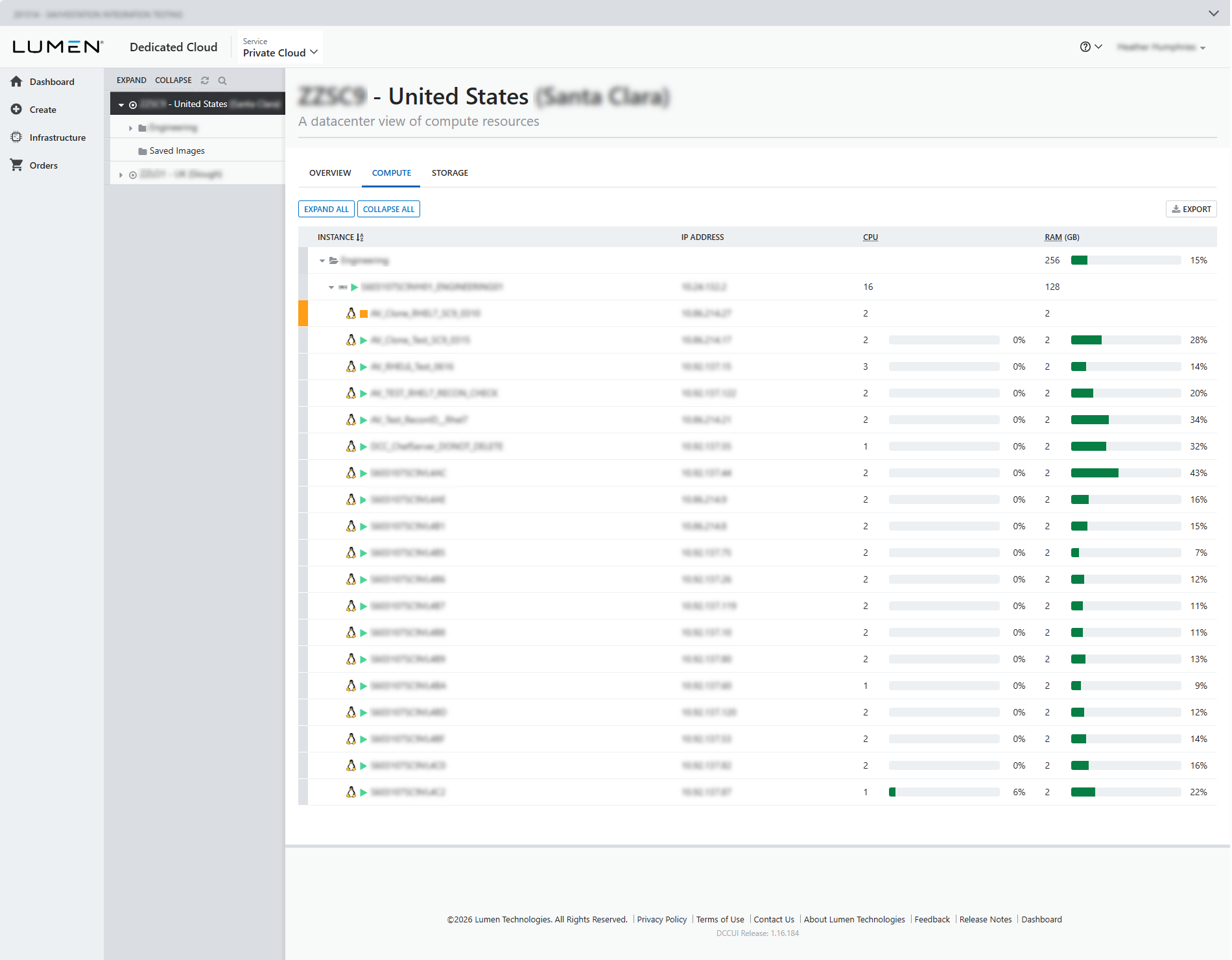
This view shows the name of the cluster, host, and servers. The view also shows you the IP address for each instance, the CPU, and RAM space with the amount in use.
Storage
To view a list of storage resources for each data center:
- Sign in to the Managed Services portal.
- Using the left navigation, click Infrastructure, then click Storage.
The Dedicated Cloud Compute portal shows the clusters and data store resources (sorted by data center) listed for your organization.
- Click a data store name to view a list of disks for each data store.
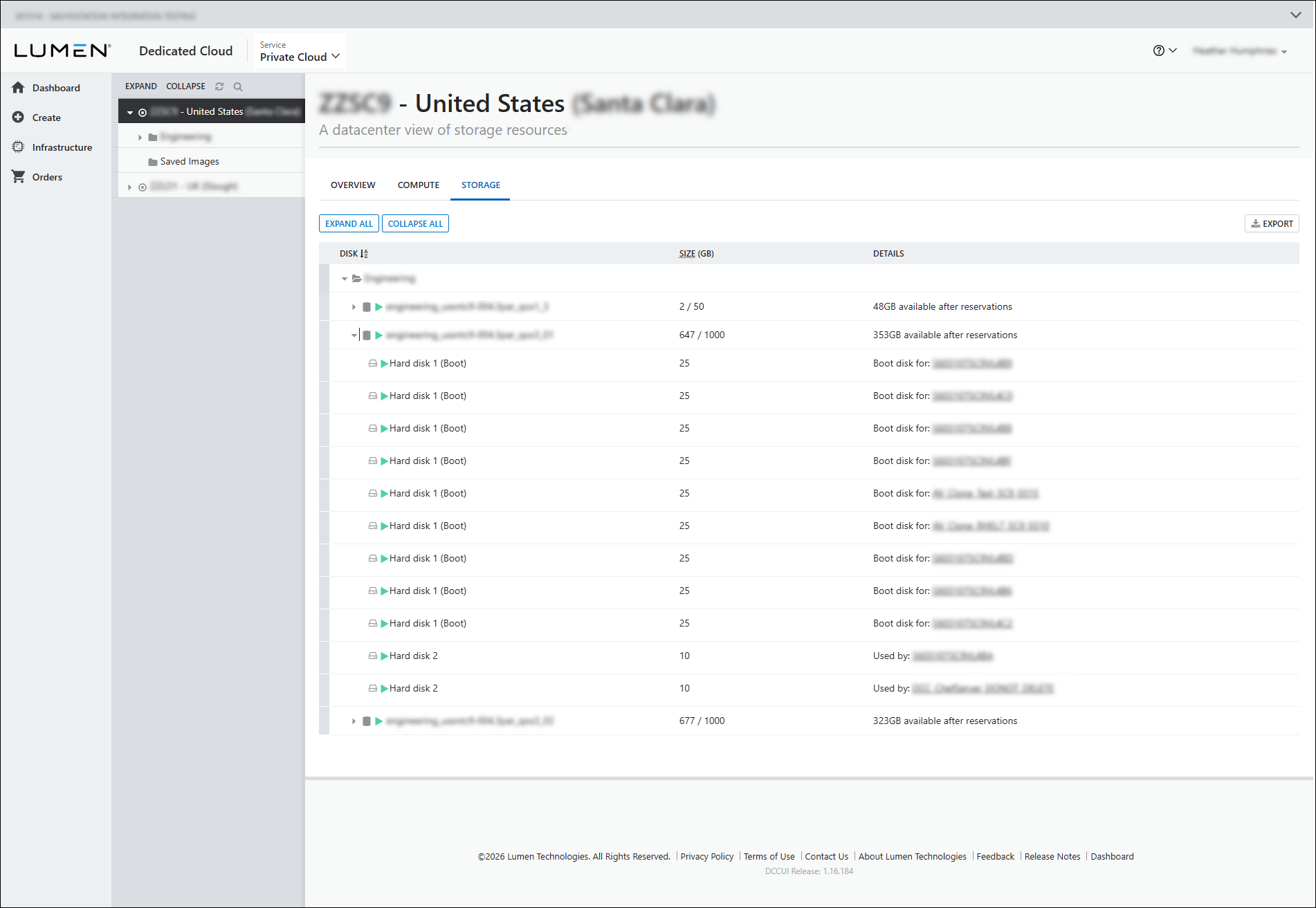
This view shows the name of the cluster, data stores, and hard disks for each data center. This view also shows total storage, amount of storage in use, and details for the data store and boot disk.
- To delete a boot disk from your data store, hover over the boot disk name, then click
cancel delete.
The DCC portal deletes the hard disk from the data store.



