Viewing resources at a cluster view
Use the Dedicated Cloud Compute portal Infrastructure tab to see a cluster view of your dedicated resources for Lumen® Dedicated Cloud Compute. You can view compute resources for each cluster such as hosts and servers. View storage resources for the cluster and view details such as status, server model, and the data stores connected to the cluster. The Utilization tab provides the option to choose specific metrics to view on a host cluster. You can view resources at a data center view or a global view.
Note: To access the Dedicated Cloud Compute portal, you must have a username and password for Managed Services portal.
Overview
To view a list of resources at a cluster view:
- Sign in to the Managed Services portal.
- Using the left navigation, click Infrastructure, then click Overview.
The Dedicated Cloud Compute portal shows the clusters for each data center in your organization.
- Click a cluster name to open the cluster view menu. The left navigation shows a list of hosting nodes and virtual machines associated with each cluster. The Overview tab shows the hosts associated with the cluster you selected.
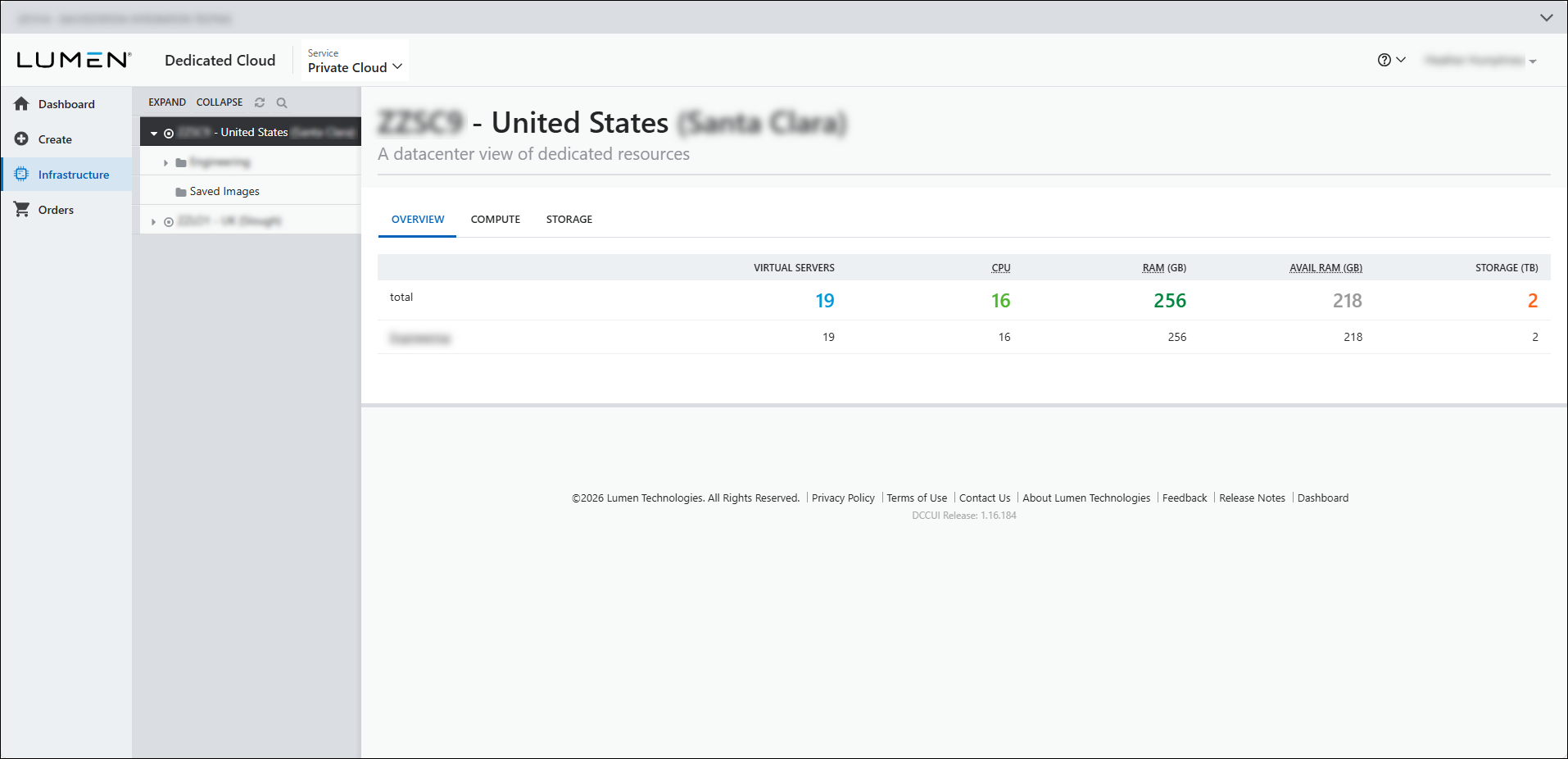
- Click a hosting node to open the Host tab and view details about the selected hosting node. (Clicking a node in the Overview tab or selecting a node on the Host tab shows the same page view.)
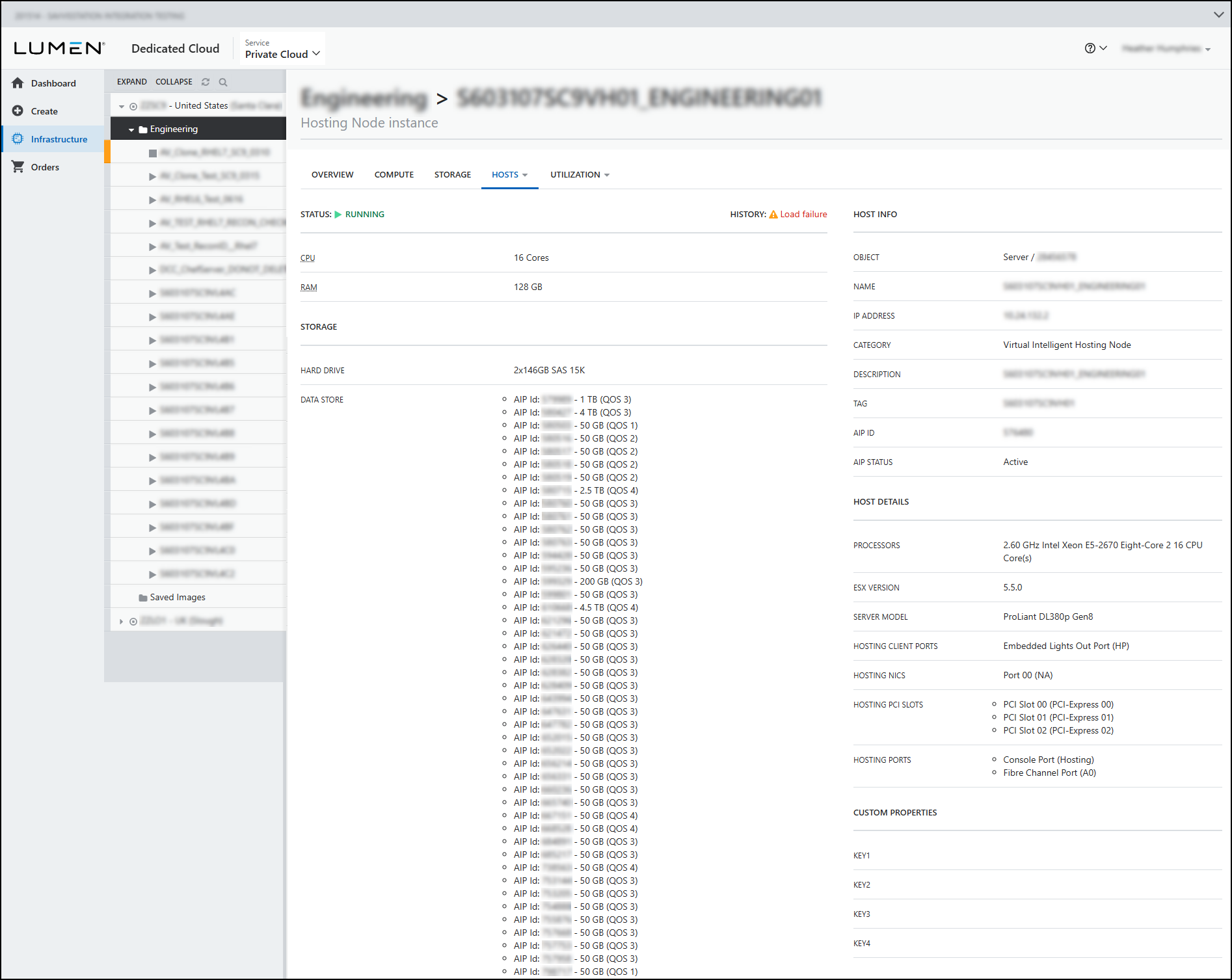
The details page shows the status and history of the hosting node, the CPU, and the RAM. The page also shows the following:
- The Host Info section shows information about the host node such as the name, description, IP address, and tag associated with the node.
- The Host Details section shows details specific to the node including the hosting ports, hypervisor version, porcessors, hosting network interface card (NIC), and hosting peripheral component interconnect (PCI) cards, and any custom properties assigned to the hosting node.
- The Storage section shows the hard drive and lists the data stores associated with the hosting node.
Compute
To view a list of compute resources at a cluster view:
- Sign in to the Managed Services portal.
- Using the left navigation, click Infrastructure, then click Overview.
The Dedicated Cloud Compute portal shows the clusters for each data center in your organization.
- Click a cluster to open the cluster view menu, then click Compute to show a list of instances associated with the cluster.
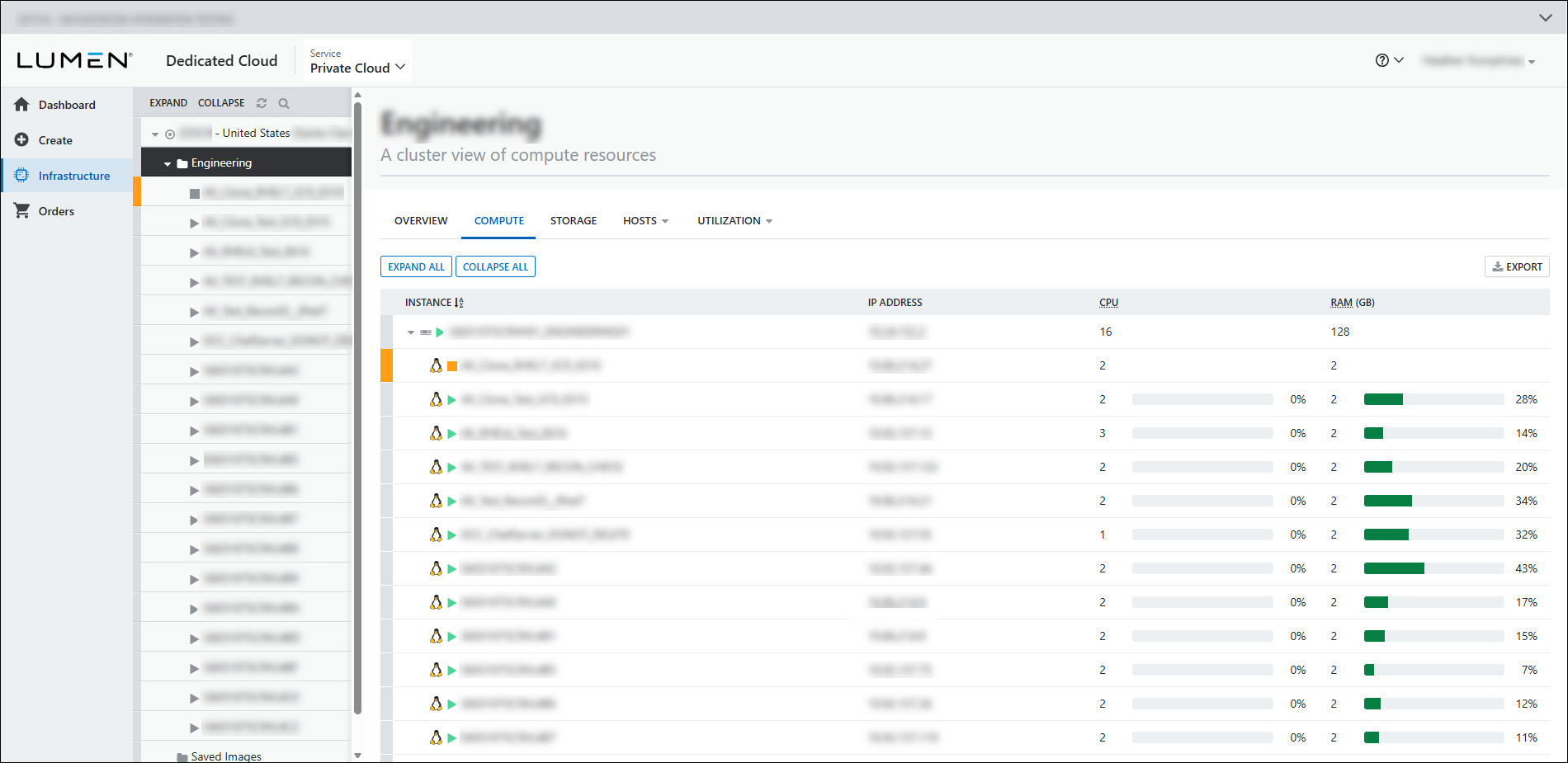
This view shows the name of the host and instances. The view also shows the IP address for each instance, the CPU and RAM space, and the amount in use.
Storage
To view a list of storage resources at a cluster view:
- Sign in to the Managed Services portal.
- Using the left navigation, click Infrastructure, then click Overview.
The Dedicated Cloud Compute portal shows the clusters for each data center in your organization.
- Click on a cluster to open the cluster view menu, then click Storage to show a list of data stores associated with the cluster.
- Click a data store name to view a list of disks for each data store.
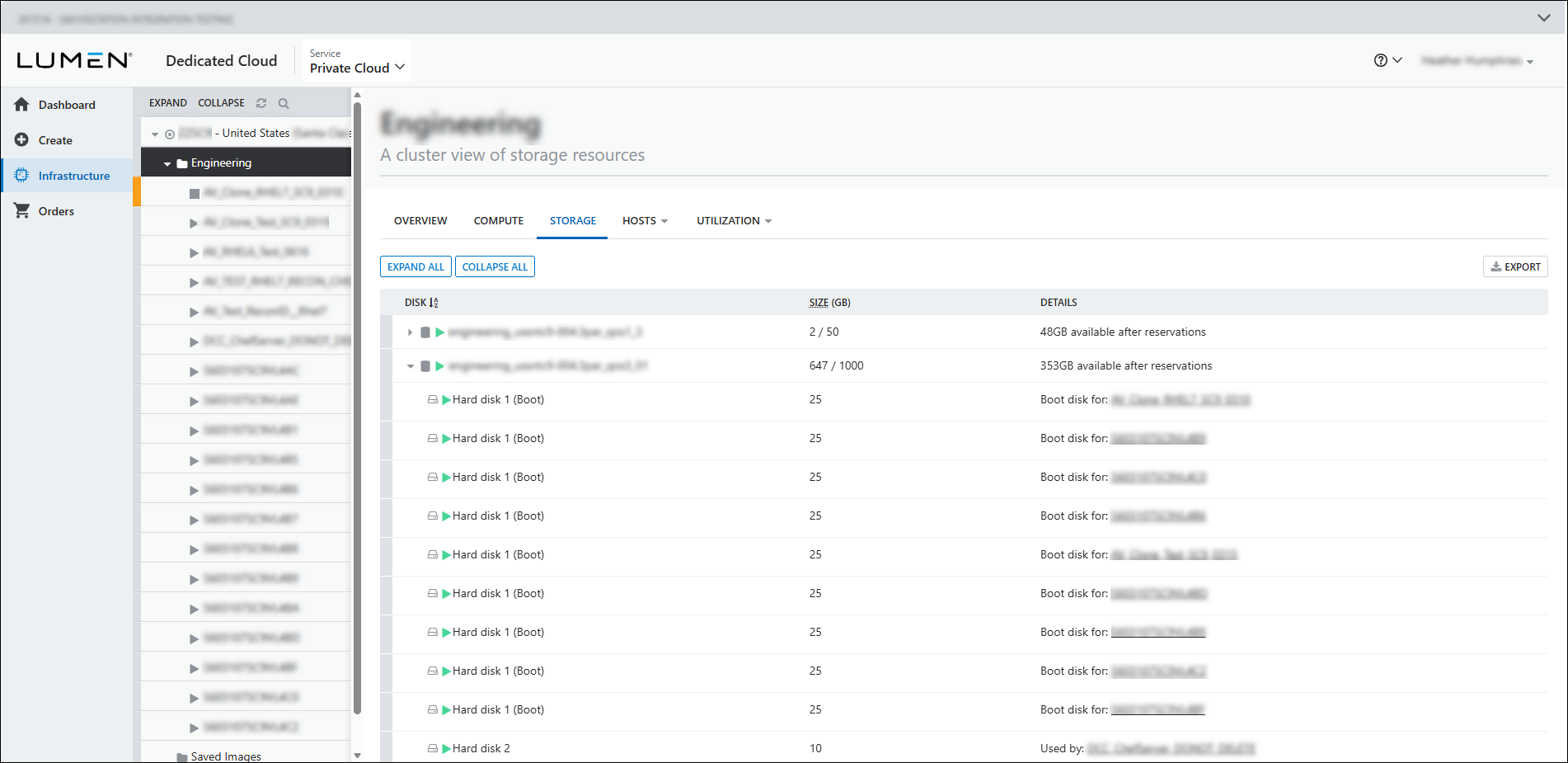
This view shows the name of the data stores and hard disks for each cluster. This view also shows total storage, amount of storage in use, and details for the data store and disks.
- To delete a boot disk from your data store, hover over the boot disk name, then click
cancel delete.
The DCC portal deletes the hard disk from the data store.
Utilization
To view utilization metrics at a cluster view:
- Sign in to the Managed Services portal.
- Using the left navigation, click Infrastructure, then click Overview.
The Dedicated Cloud Compute portal shows the clusters for each data center in your organization.
- Click on a cluster to open the cluster view menu, then click Utilization to select metrics for host variables including load time, disk utilization, available memory, uptime, traffic, and errors.
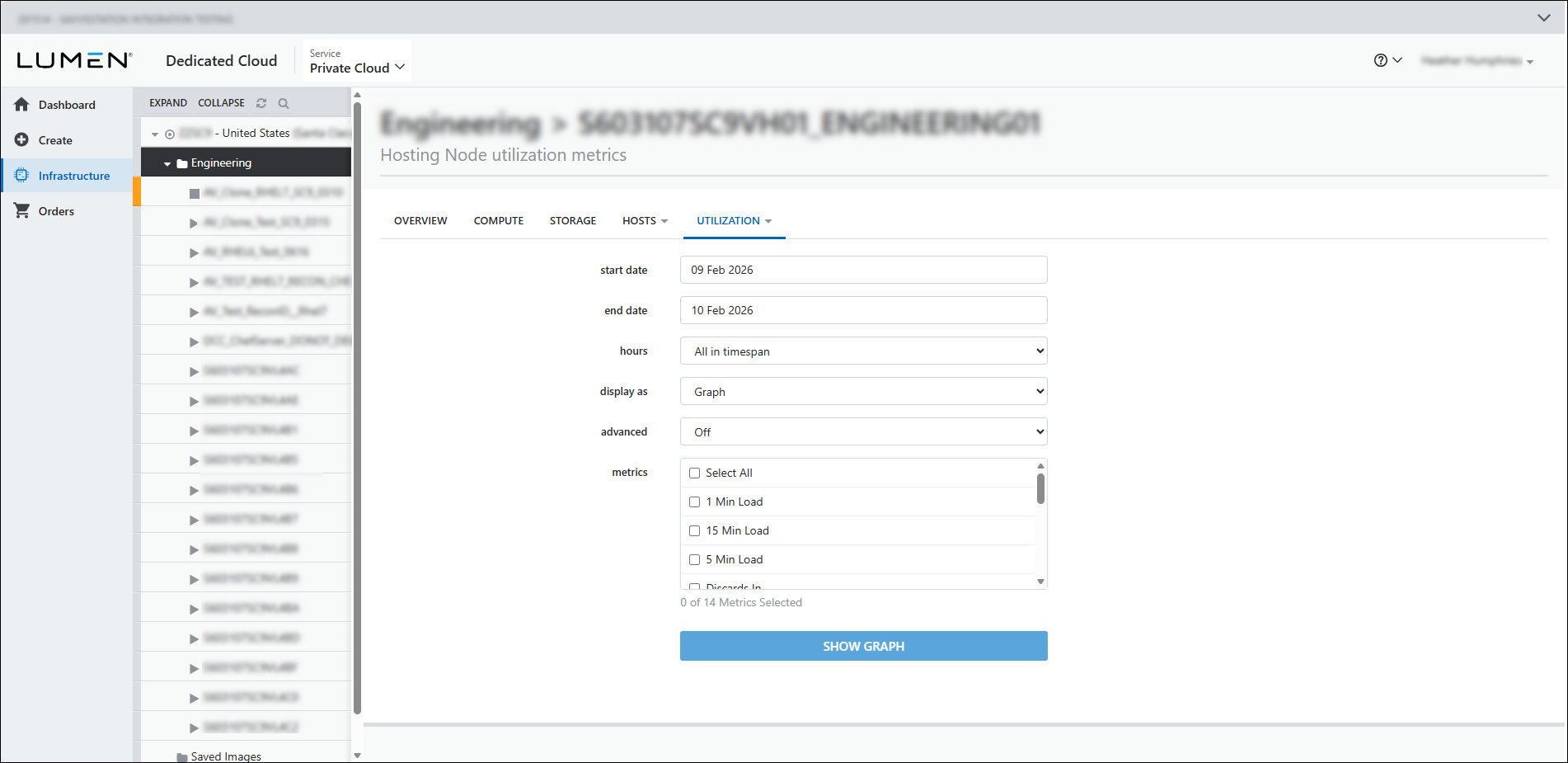
- Complete the form by selecting the metrics you want to view. Choose to view the metrics as a graph or table. When you're done, click Show Graph or Show Table.



