Viewing a list of server operations requests
Use the Dedicated Cloud Compute portal Orders tab to view and manage your for Lumen® Dedicated Cloud Compute server and storage deployment requests. The Server Operations page shows a detailed list of all the server operations requests including the name, status of the request, creator, creation date, and the monthly cost for each request. An expanded view of each request shows the type of request selected (e.g., Create Server), the cluster it is created in, and a breakdown of the monthly cost. Expand the type to show details on the server, the resources configured, networks, and storage for the server. You can also view details for a server operations request.
Note: To access the Dedicated Cloud Compute portal, you must have a username and password for Managed Services portal.
To view a list of server operations requests:
- Sign in to the Managed Services portal.
- Using the left navigation, click Orders, then click Server Operations.
The Dedicated Cloud Compute portal lists server operations requests for your organization.
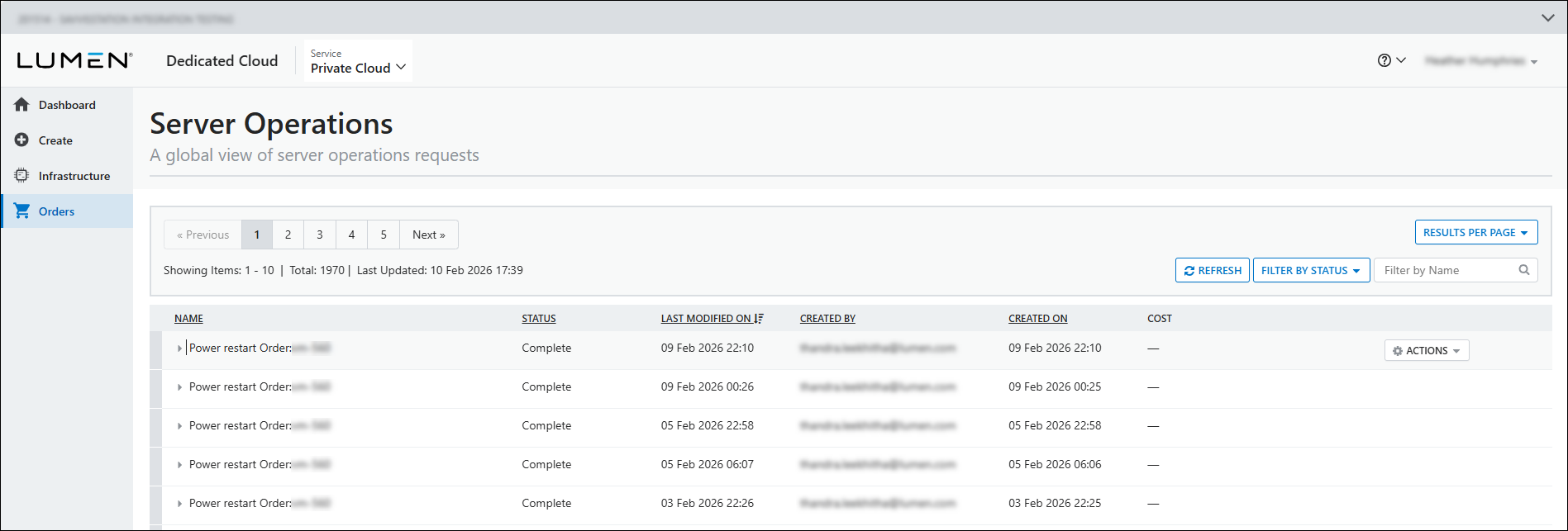
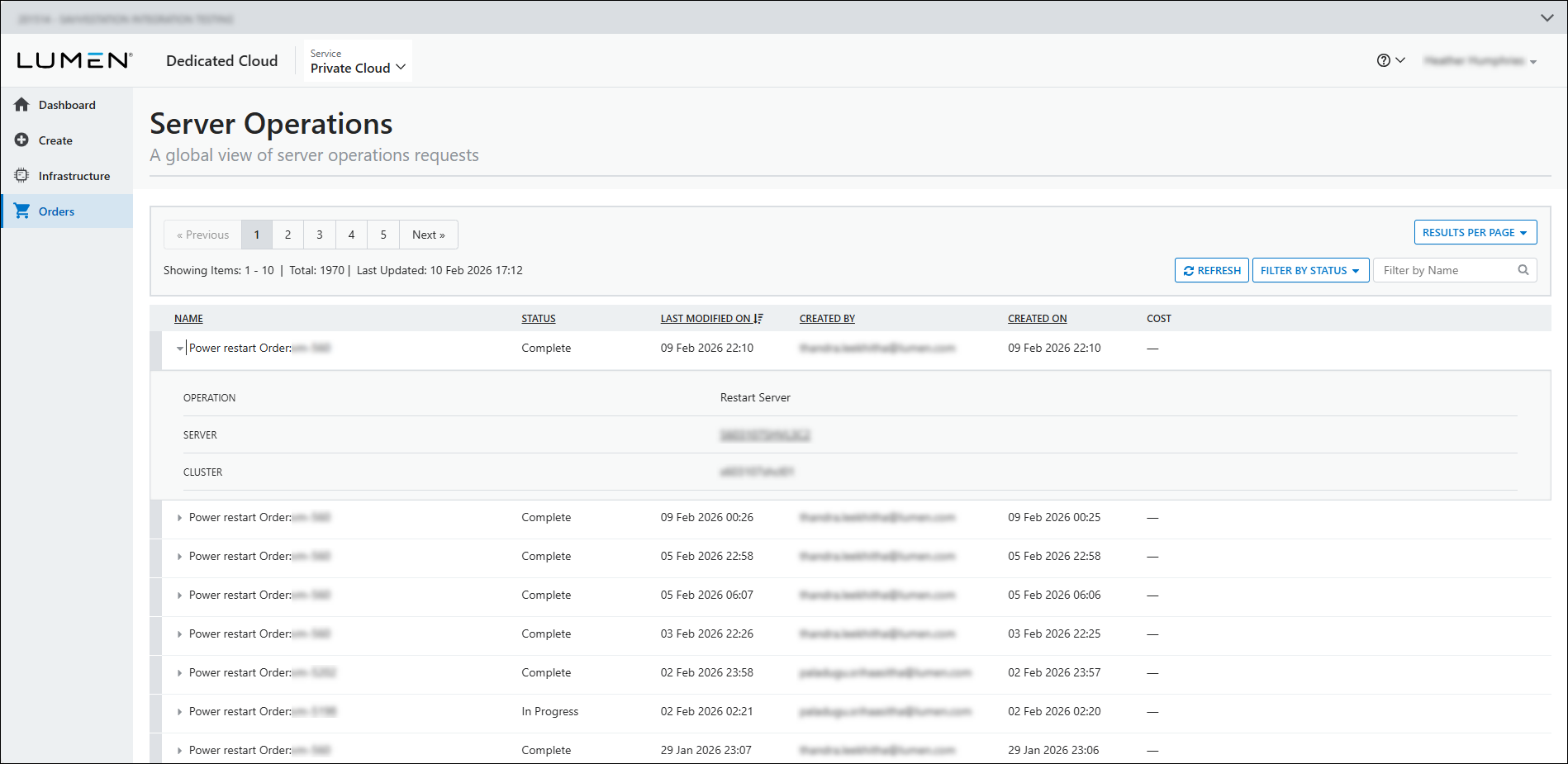
- Click a server operation request name to expand the request and view more details on the operation initiated for the server.
- To update the page, do any of the following:
- To refresh the page, click
cached REFRESH.
- To filter the page so you only see a certain status, click FILTER BY STATUS
arrow_drop_down .
- To change the amount of results you view per page, click RESULTS PER PAGE
arrow_drop_down .
- To refresh the page, click
- To view information about the requests, review the following sections:
- Operation shows the type of operation initiated on the server.
- Server shows the friendly name you gave to the server when it was configured. Click the server name to view details for the virtual machine instance.
- Server Name shows the machine name for the server.
- Cluster shows the cluster the server is associated with.
- Operation shows the type of operation initiated on the server.
- To view the server operation request, click
settings ACTIONS for the request, then click View Details.



