Viewing a list of bare metal servers
For Lumen® Edge Bare Metal, you can view a list of bare metal servers provisioned for your organization using Lumen Connect®. You can view details for existing servers, edit a server name, or edit tags assigned to a server. If you no longer need a bare metal server, you can delete it.
To view a list of bare metal servers:
- Click the Servers tab.
Lumen Connect shows the servers created for your organization with a status and brief summary for each server (name, location, IP address, server ID, and tags assigned to the server).
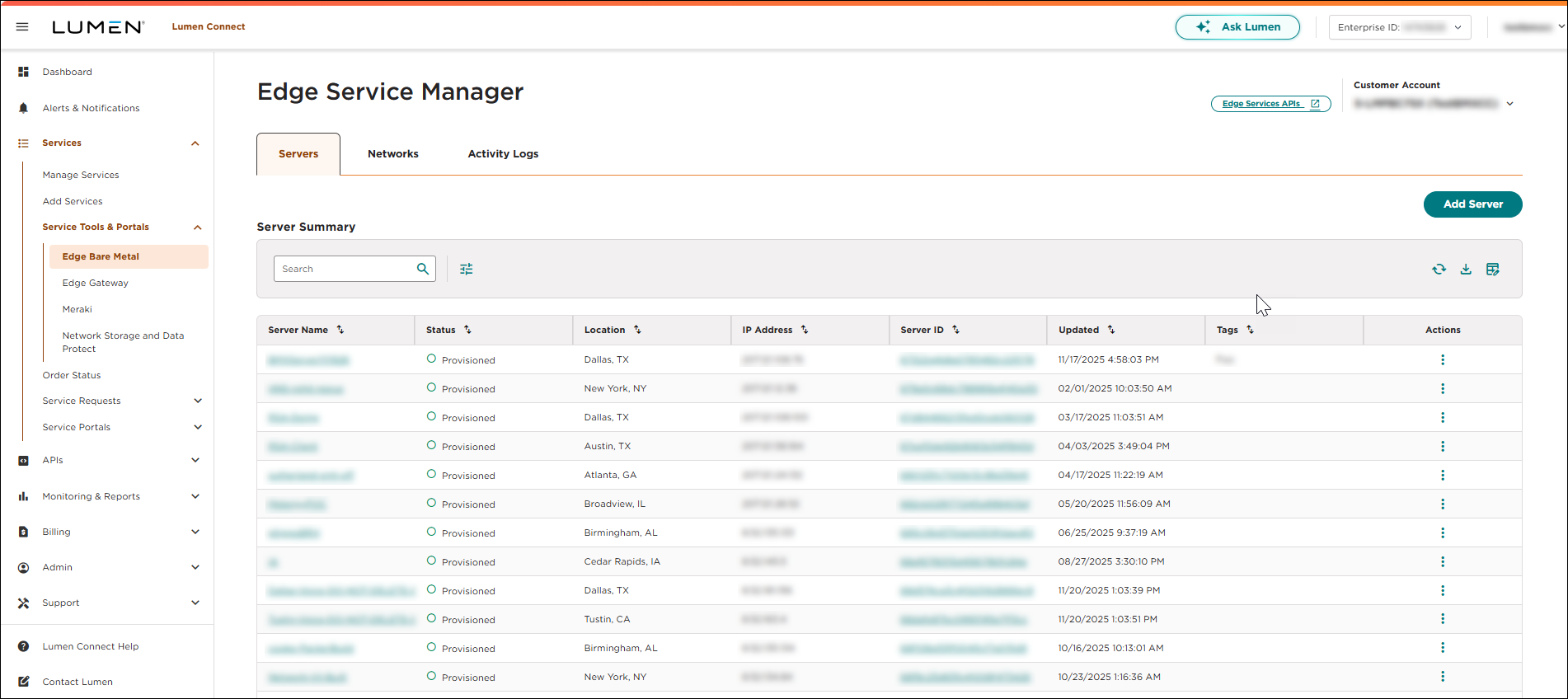
- Search the server list by doing one of the following:
- Scroll through the servers on the screen. If you have more than 15 servers, use the arrows at the bottom of the screen to view more servers.
- Search for a server by typing search criteria in the Search field (e.g., server name, server ID, etc.). The results filter as you type.
- Filter the list by clicking the
tune icon, then using any of the filters that appear. You can filter by server configuration, operating system, status, creation date, and tags assigned to the server. As you use the filters, Lumen Connect updates the results to match your selections.
- Scroll through the servers on the screen. If you have more than 15 servers, use the arrows at the bottom of the screen to view more servers.
- Use the icons on the screen to do any of the following:
- To refresh the list, click the
cached icon.
- To download the list of servers you're viewing, click the
download icon.
- To customize the list of servers you're viewing (such as adding or removing columns from your view), click the
table_edit icon. Use thechevron_left andchevron_right icons to create your custom view. Use theexpand_less andexpand_more icons to arrange the columns in a specific order, then click Save.
- To view details for a specific server, click the
more_vert icon (in the Actions column), then click Server Details.
- To edit the server name, click the
more_vert icon (in the Actions column), then click Edit Name.
- To edit tags assigned to the server, click the
more_vert icon (in the Actions column), then click Edit Tags.
- To delete the server, click the
more_vert icon (in the Actions column), then click Delete.
- To refresh the list, click the



