Editing a hierarchy for usage reports
In Lumen Connect®, you can edit a hierarchy for voice usage reports to change whether it's public or private, add or remove nodes, adjust the services (and their descriptions) on nodes, and more. You can also add descriptions for services separately. If you no longer need a hierarchy, you can delete it from Lumen Connect.
Note: You cannot change the customer number a hierarchy uses. To change the customer number, create a new hierarchy.
To edit a hierarchy for usage reports:
- Using the left menu, click Monitoring, click Voice Reports, then click Usage Reports.
Lumen Connect shows a list of usage reports for your organization.
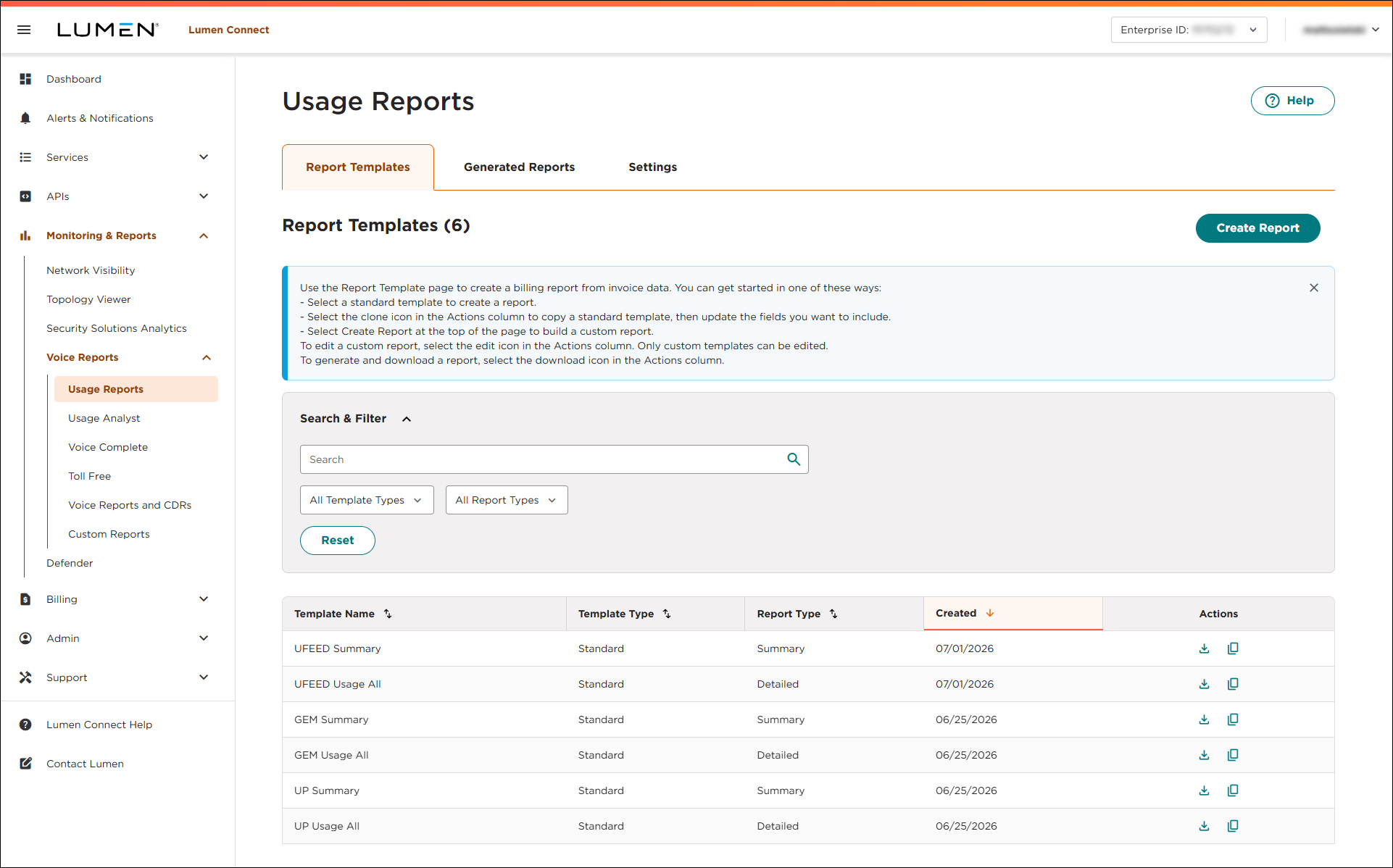
- Click the Settings tab.
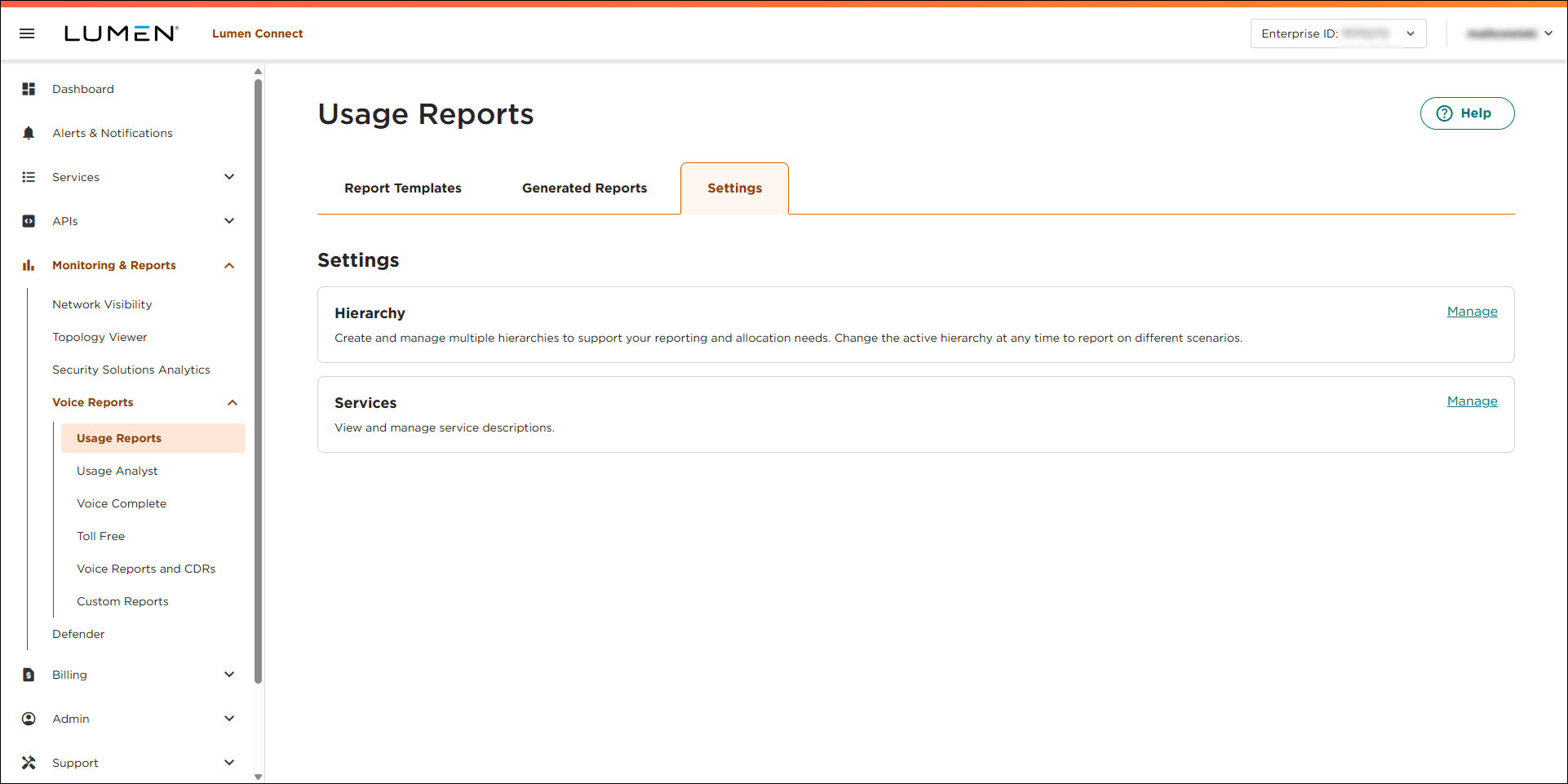
- In the Hierarchy box, click Manage.
Lumen Connect lists the hierarchies (if any) for your organization. (You can view all public hierarchies and any private hierarchies you created.)
- On the row for the hierarchy you want to edit, click the
edit icon.
Lumen Connect shows the nodes for the hierarchy you selected.
- Make your changes to the hierarchy:
- To change the name of the hierarchy, change the information in the Hierarchy Name field.
- To change whether the hierarchy is public or private, select a radio button in the Public Settings field.
- To add a node:
- Click Add Node.
- In the box for the node, type a name for the node and add a GL (general ledger) code and descriptions for the node as needed.
- Click Add Services.
- In the window that appears, search for the service(s) you want to assign to the node. You can use the search field to type a service ID or location. You can also filter the list of services by billing account number or status (Active vs. Inactive). When you find the service(s) you want to add, select the checkbox on the row for the service(s), then click Save.
- Repeat steps a–d to add more nodes.
- Click Add Node.
- To edit a node, click the
expand_more icon, then do any of the following:
- To edit the details for the node, make your changes in any of the fields. (For example, you can change the GL (general ledger) code or update the the name of the node.)
- To edit the details for the node, make your changes in any of the fields. (For example, you can change the GL (general ledger) code or update the the name of the node.)
- To delete a node, click the
delete icon in the box for the node, then click Confirm.
- To change the name of the hierarchy, change the information in the Hierarchy Name field.
- When you're done, click Save.
Lumen Connect saves your changes to the hierarchy.



