Adding a description to a service for usage reports
In Lumen Connect®, you can add up to two descriptions to each service to give your summary and detail usage reports more meaning. (You can also add descriptions while you're creating or editing a hierarchy. If you want to get a full view of the nodes, services, and descriptions in a hierarchy, you can export it.
To add a description to a service for usage reports:
- Using the left menu, click Monitoring, click Voice Reports, then click Usage Reports.
Lumen Connect shows a list of usage reports for your organization.
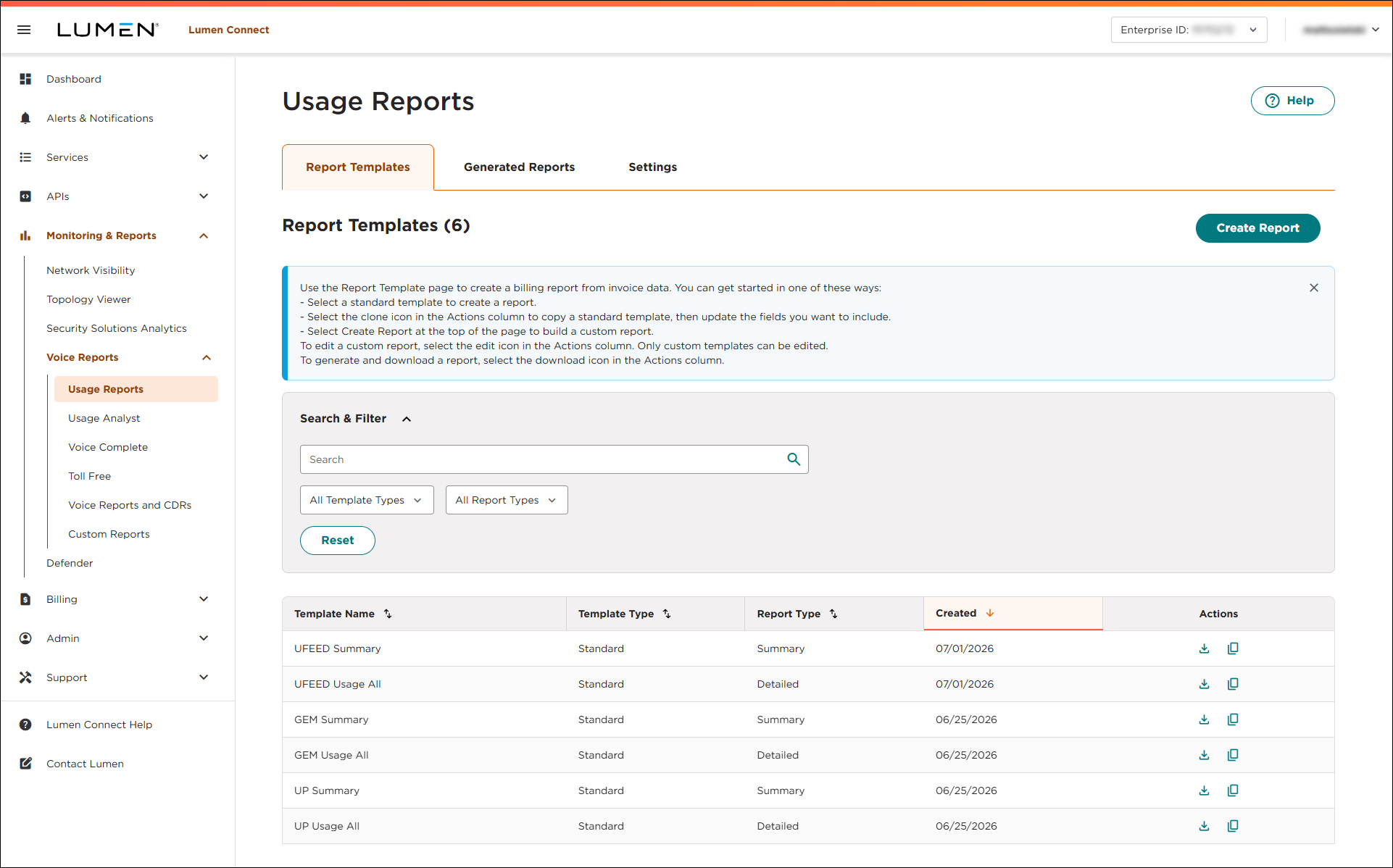
- Click the Settings tab.
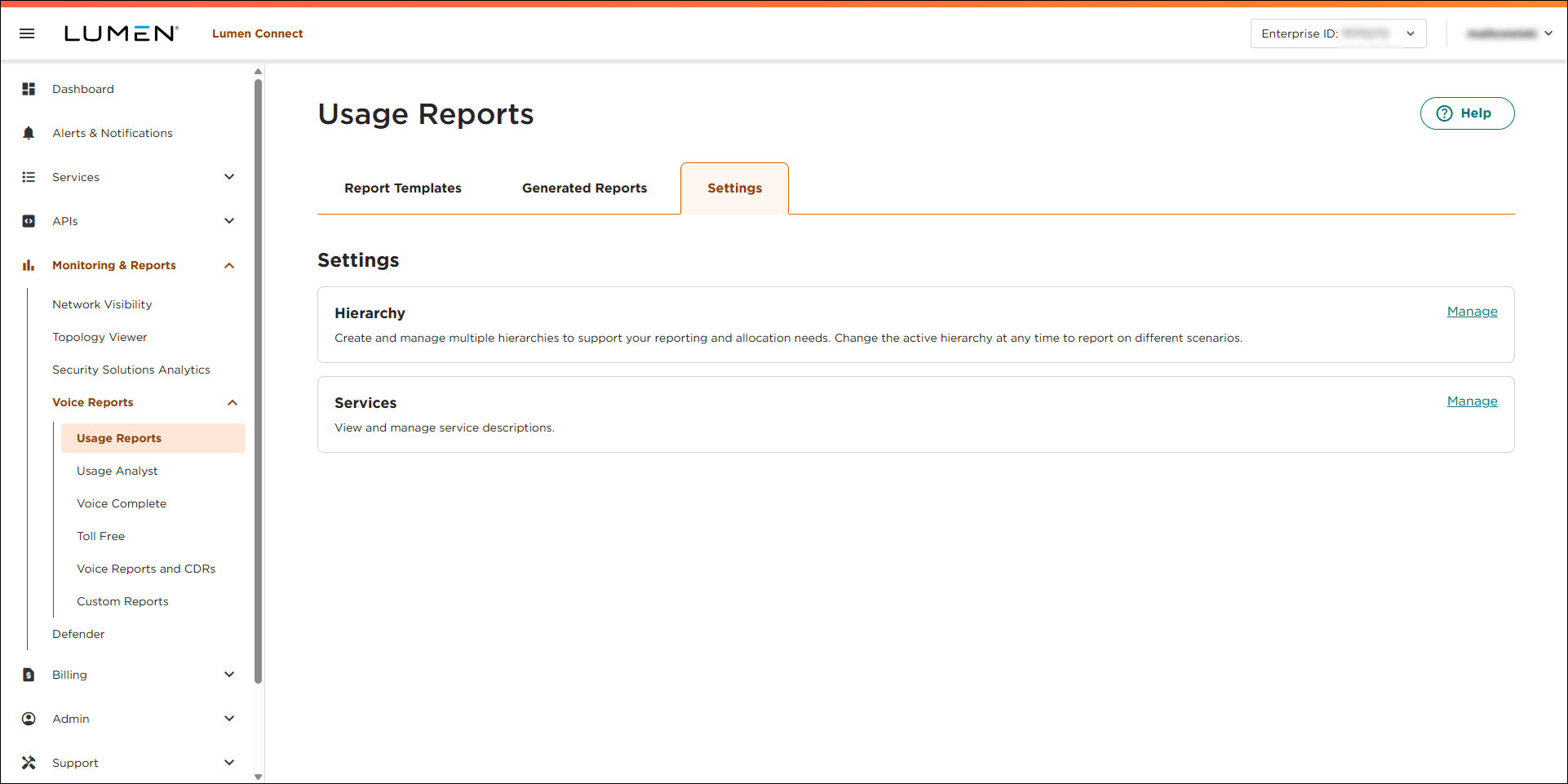
- In the Services box, click Manage.
- Use the Search and Filter box to search for the service(s) you want to add a description for. You can use the search field to type a service ID or location. You can also filter the list of services by billing account number or status (Active vs. Inactive).
- When you find the service(s), use the the Description 1 field, type a description for the service. If you want another description, type it in the Description 2 field.
- When you're done, click Save.
Lumen Connect saves the description(s) you added and will add them to summary and detail reports for your organization.
- Repeat steps 5–7 to search for more services and add descriptions as needed.



