Viewing a summary network performance report
Using Network Visibility (Lumen Connect®), you can create and download several types of summary reports (in Excel or .csv format): active end to end, active POP to POP, interfaces, network management, and class of service. Report types vary based on your Lumen services. Network Visibility also offers backbone performance metrics.
To view a summary network performance report:
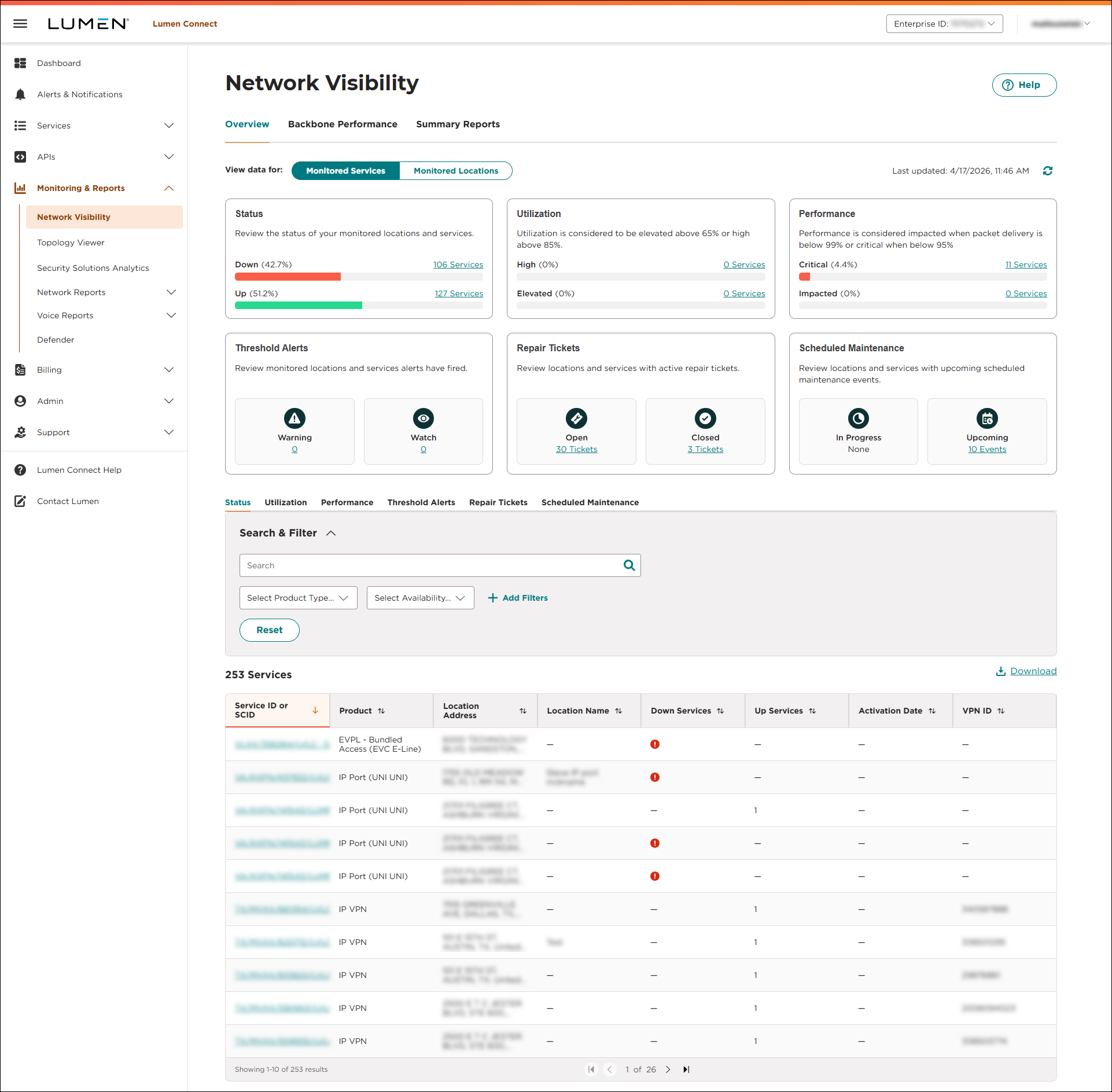
- Using the left menu, click Monitoring, then click Network Visibility.
Lumen Connect opens Network Visibility. Tiles show a quick view of your network services: status, utilization, and performance. You'll also see tiles for threshold alerts, repair tickets, and scheduled maintenance (planned network maintenance). Below the tiles, you can view a list of your services by status, utilization, or performance, and those with threshold alerts, repair tickets, or scheduled maintenance associated with them. You can also view your services by location on a map using the Monitored Locations toggle. Use the Backbone Performance and Summary Reports tabs to access additional network performance data. (To refresh the data show, click thecached icon.)
- Click the Summary Reports tab.
- Select the checkbox next to the report(s) you want to view. (Each checkbox you select creates a separate file for each summary report.)
- From the Duration list, select the time period for the report: Daily (data for a specific day, such as today), Weekly (data for a full week—starting on a Sunday), Monthly (data for a full calendar month).
- Based on the report duration you selected, do one of the following:
- If you selected Daily, click the
calendar_month icon to select the day you want to view the summary report for.
- If you selected Weekly, click the
calendar_month icon to select the Sunday of the week you want to view the summary report for.
- If you selected Monthly, use the Month and Year lists to select the month you want to view the summary report for.
- If you selected Daily, click the
- Use the File Type toggle to select the format for the summary report: Excel spreadsheet or CSV file.
- Click Download reports.
Lumen Connect creates the summary report(s) you requested and provides a status for each:
- In Progress: Lumen Connect is still creating the report.
- Failed: Lumen Connect wasn't able to create the report.
- Success: Lumen Connect created the report and downloaded the file to your computer (using the folder set for downloads in your browser).
- In Progress: Lumen Connect is still creating the report.



