Exporting a hierarchy for usage reports
In Lumen Connect®, you can export a hierarchy to print or archive it for future reference. Sometimes it's also helpful to export the hierarchy before you edit it so you can see the full structure and where you need to make changes. The downloaded file contain the structure of the hierarchy, accounts, services, and descriptions.
You can use hierarchies to structure your data to track your voice usage or spend across different groups and functions of your organization for more informed reporting and analysis:
- Review monthly telecom spend by business unit, division, department, group, or other segment of your organization; assign costs among groups that share telecom services.
- Use a hierarchy like data filters for your reports.
- Create multiple hierarchies to test and compare different reporting scenarios.
A hierarchy mirrors the structure of your organization—business units, regional offices, retail outlets, cooperatives, departments, and other reporting groups. You can set a hierarchy you create as private (available only to you) or public (available for all users in your organization).
To export a hierarchy:
- Using the left menu, click Monitoring, click Voice Reports, then click Usage Reports.
Lumen Connect shows a list of usage reports for your organization.
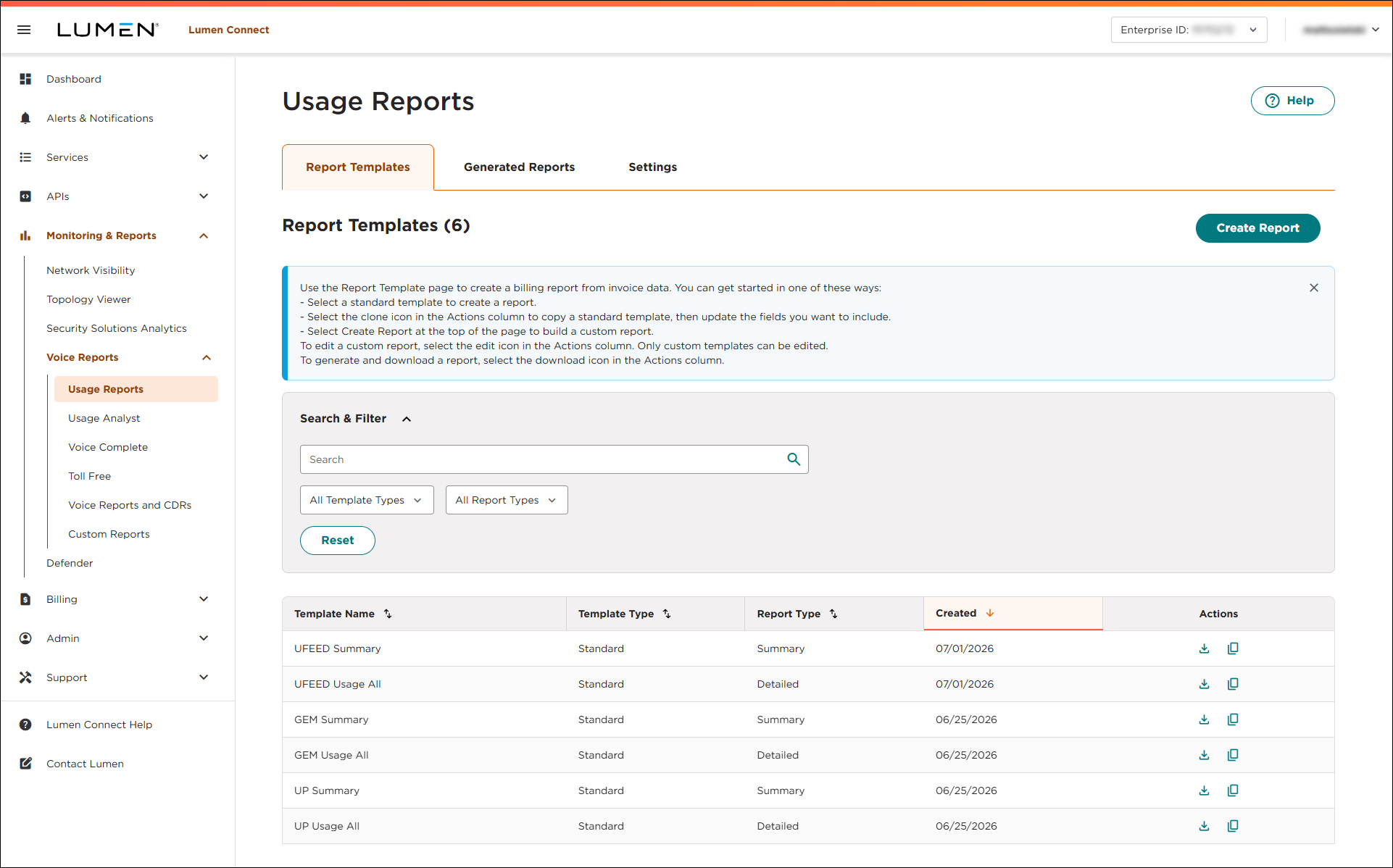
- Click the Settings tab.
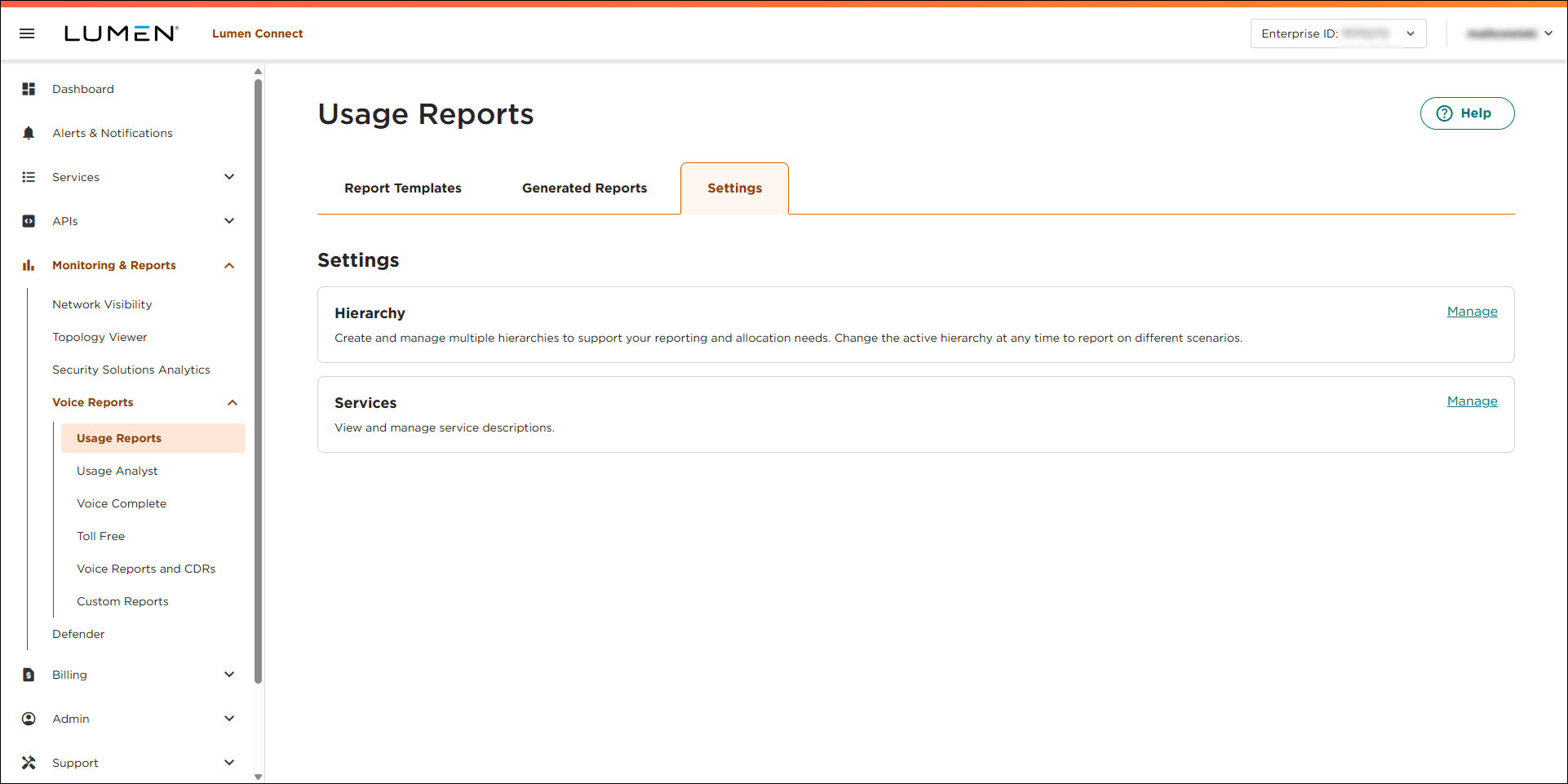
- In the Hierarchy box, click Manage.
Lumen Connect lists the hierarchies (if any) for your organization. (You can view all public hierarchies and any private hierarchies you created.)
- On the row for the hierarchy you want to export, select the checkbox, then click Export.
Lumen Connect starts the download for the hierarchy.



