Searching for a customer service record (CSR) request
Use the Carrier Port-Out Tool to search for customer service record (CSR) requests submitted by your organization. Typically, you search for a CSR to check its status and view any errors so you can resubmit and get a clean CSR. Once you have a clean CSR, you can submit it as a local service request (LSR).
To search for a customer service record request:
- If you have more than one SPID, select the SPID you want to work with, then click Continue.
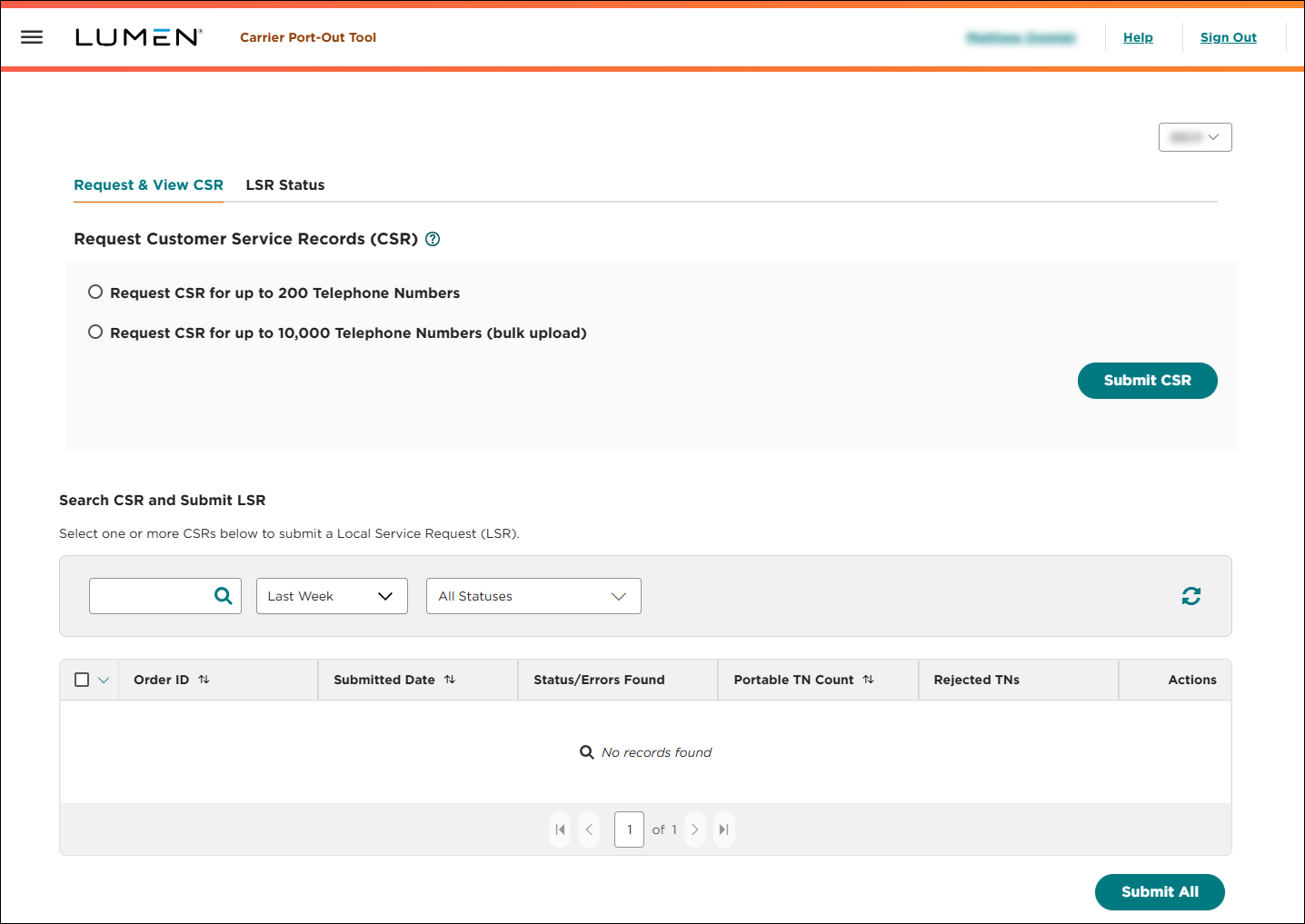
- Search for the customer service record request you want to work with:
- To search by information in the request, type the information in the search field, then press Enter.
- To see all customer service record requests created within the past week, select Last Week from the list.
- To see all customer service record requests created within the past 30 days, select Past 30 Days from the list.
- To see all customer service record requests created within the past 90 days, select Past 90 Days from the list.
- To see all customer service record requests created in a specifc date range, select Custom Date Range from the list, click the icon, use the fields to select a start and end date, then click Apply.
- To see all of customer service record requests in a certain status, select an option from the Status list.
- To refresh the page, click the icon.
The Carrier Port-Out Tool shows all customer service record requests matching your search criteria and includes a status (including a summary of any errors) for each CSR. The Carrier Port-Out Tool also shows how many phone numbers from the CSR are portable and how many are rejected. (To see a list of the rejected phone numbers, click the Download link in the Rejected TNs column.)
- To search by information in the request, type the information in the search field, then press Enter.
- To view details for the customer service record request, click the icon (in the Actions column), then click View CSR Details.
The Carrier Port-Out Tool shows details for the customer service record request you selected.



